Quick entry
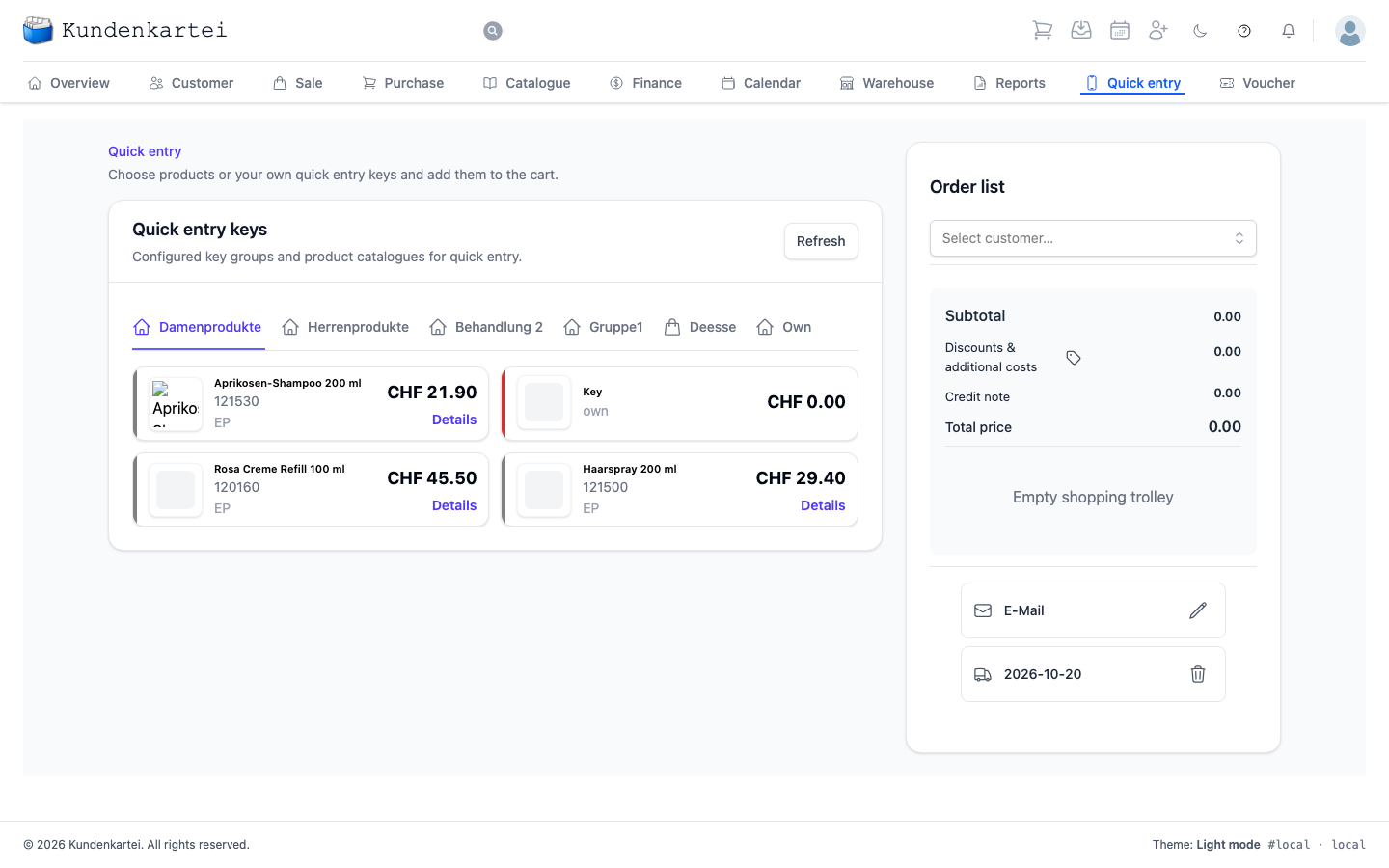
Quick entry is the fast route to an order. It is built for the moment when the customer is standing in front of you: tap articles, choose the customer, place the order.
What sets it apart from an ordinary order is speed. Instead of searching for an article, you tap a key.
No money is taken here
Quick entry orders and delivers — nothing more. Place order creates the order and its delivery note. It settles nothing, accepts no payment and prints no till receipt. You then issue the invoice in the order with Create invoice — you will find the order under Sale.
Left: the keys
The keys are arranged in groups — in the picture by women’s and men’s products, by treatment and by supplier. Which groups you have is for you to set up, under Settings → Quick entry. Your groups are followed by two tabs with the whole catalogue: Deesse with your supplier’s articles and Own with your own products.
Each key shows the description, article number, price and the article type. Details opens the article.
The coloured stripe along the left edge carries the colour you gave the key in the settings. The articles in Deesse and Own have no colour of their own.
Refresh reloads the key groups. Necessary if you have just changed them in the settings and the change is not yet showing.
Right: the order list
What you tap lands on the right. The order list totals up as you work.
At the top you choose the customer. Below it the order adds up:
| Line | Meaning |
|---|---|
| Subtotal | the articles added together |
| Additional costs | postage or similar, chosen through the label symbol beside it |
| Credit note | a balance being set off |
| Total price | the total of the order, with the currency |
The articles appear below. If nothing has been chosen, it says Empty shopping trolley.
Below that are the details for closing: the e-mail address and the Delivery date. The delivery date is preset to today. The waste bin deletes it; you then set a different one with the pencil.
The Place order button with the total price appears as soon as a customer has been chosen. Afterwards the application takes you to the Overview.
When the field turns yellow
If the delivery date is missing — because you deleted it, say — its field turns yellow. Below it appears Validation error with “Delivery date required”, and Place order stays locked. That is not a defect: quick entry creates the delivery note together with the order and needs to know when delivery takes place. Once you set a delivery date again, the message disappears.
If the order is not saved, a message says so and the order list stays as it is — you simply place the order again. If the order is saved but the delivery note is not, you record the delivery in the order afterwards.
Where to begin
- Choose the customer at the top right
- Tap articles using the keys
- Check the totals
- Check the delivery date — without one, you cannot proceed
- Place order
Next
- Creating an order — the long way round
- Invoice — how an order becomes an invoice
- Catalogue — where the articles come from
- Adjusting the configuration — setting up key groups