🧾 Invoices and payments
These instructions show you how, in the Kundenkartei web app, you:
- create invoices (manually or automatically)
- send invoices (Word, PDF, e‑invoice)
- post incoming payments
- use the automatic dunning process
🔎 Status and workflow
| Status | Meaning | Typical action |
|---|---|---|
| Draft | Not yet final; editable | Check, correct if necessary |
| Sent | Sent to the customer | Await the incoming payment |
| Partially paid | A part payment has been recorded | The balance is open, dunning periods run |
| Paid | Settled in full | Transaction completed |
| Overdue | The due date has passed | The dunning process starts |
Tip: only set invoices to “Sent” after a final check, so that the dunning periods run correctly.
1️⃣ Creating an invoice
Invoices can be created automatically on the basis of quotes or orders – or manually in the “Invoice” module.
🔧 Step by step
Open an order or a quote.
Click “Create invoice”
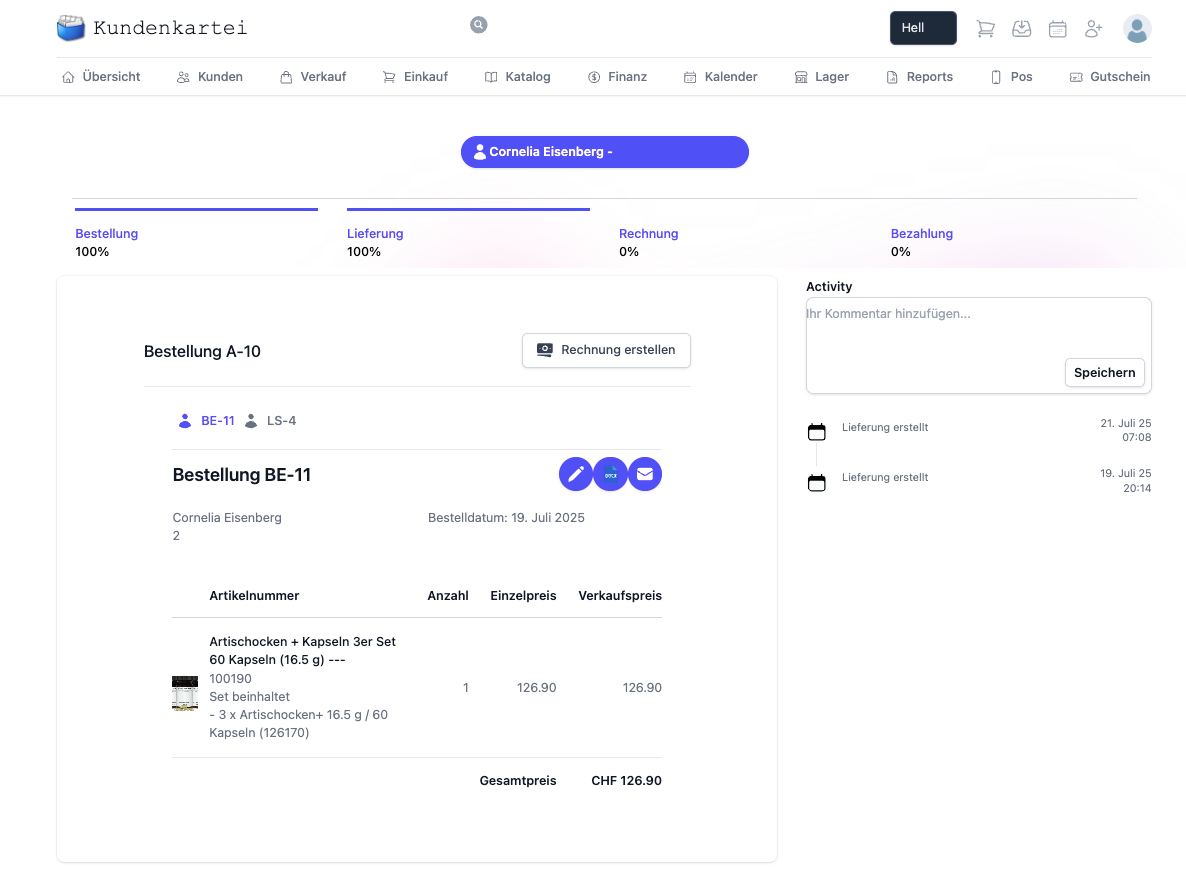
Select the lines you want.
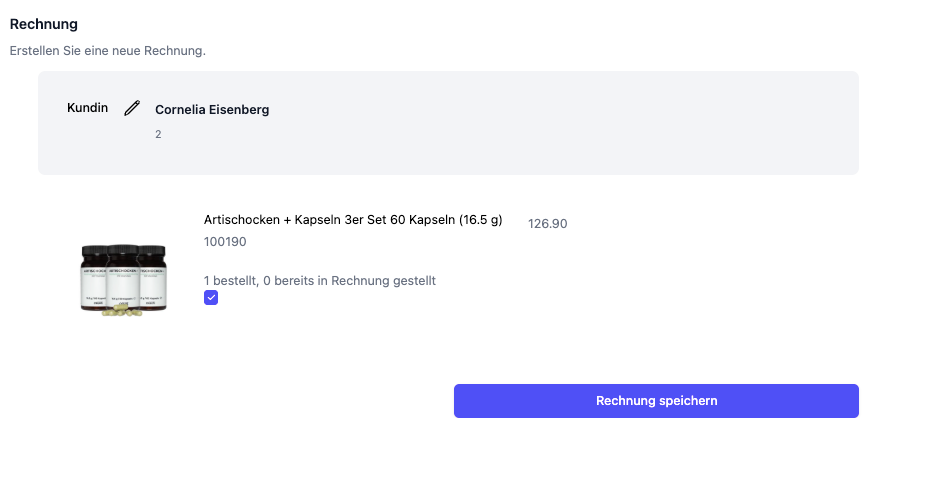
Click “Save invoice”
✅ As soon as all lines have been invoiced, the progress bar shows 100 %.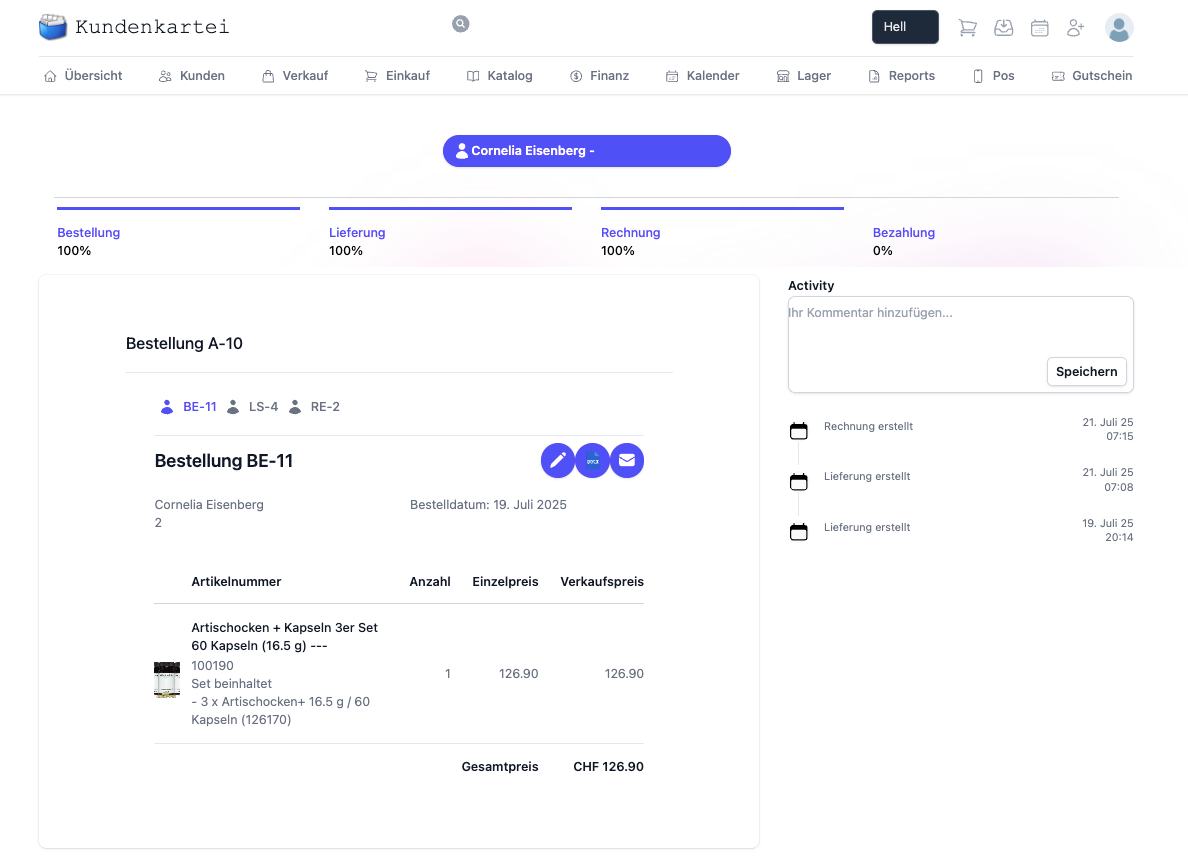
Note: partial invoices are possible. Lines that are not selected stay open and can be invoiced later.
2️⃣ Sending invoices
You can send the invoices you have created in three ways:
- 📧 By e‑mail
- 📝 As a Word document (editable)
- 📄 As a PDF (also with embedded XML for the e‑invoice)
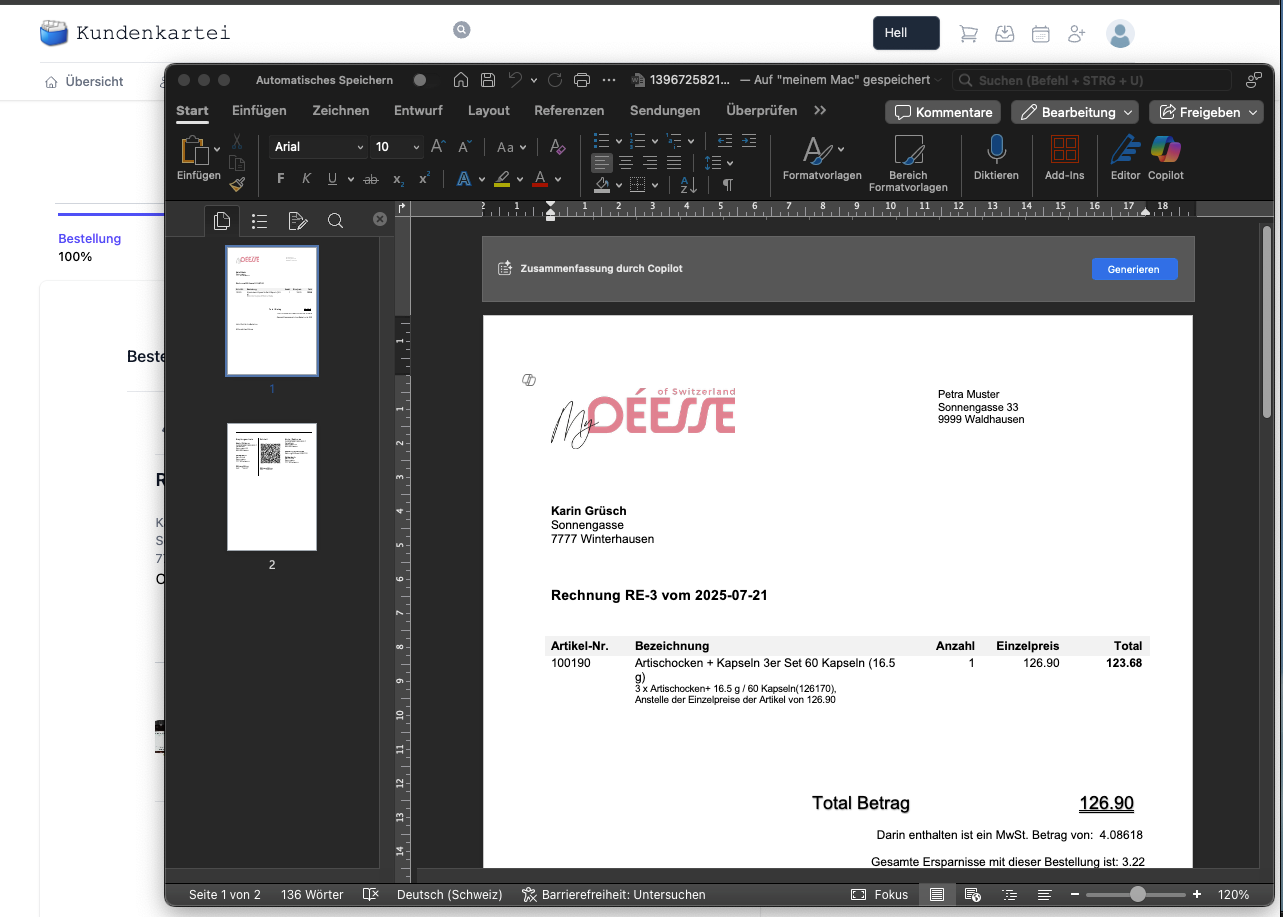
Figure: preview of the created invoice
Clicking the corresponding icon creates the file and downloads it directly: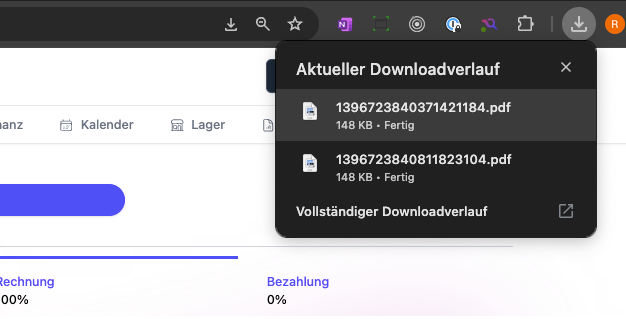
Tip: before sending, check the sender address, the payment terms and the due date.
3️⃣ E‑invoice in the ZUGFeRD format
The PDF invoice automatically contains the XML data for e‑invoices (ZUGFeRD).
Many ERP systems or PDF viewers can recognise it (e.g. Adobe Acrobat).
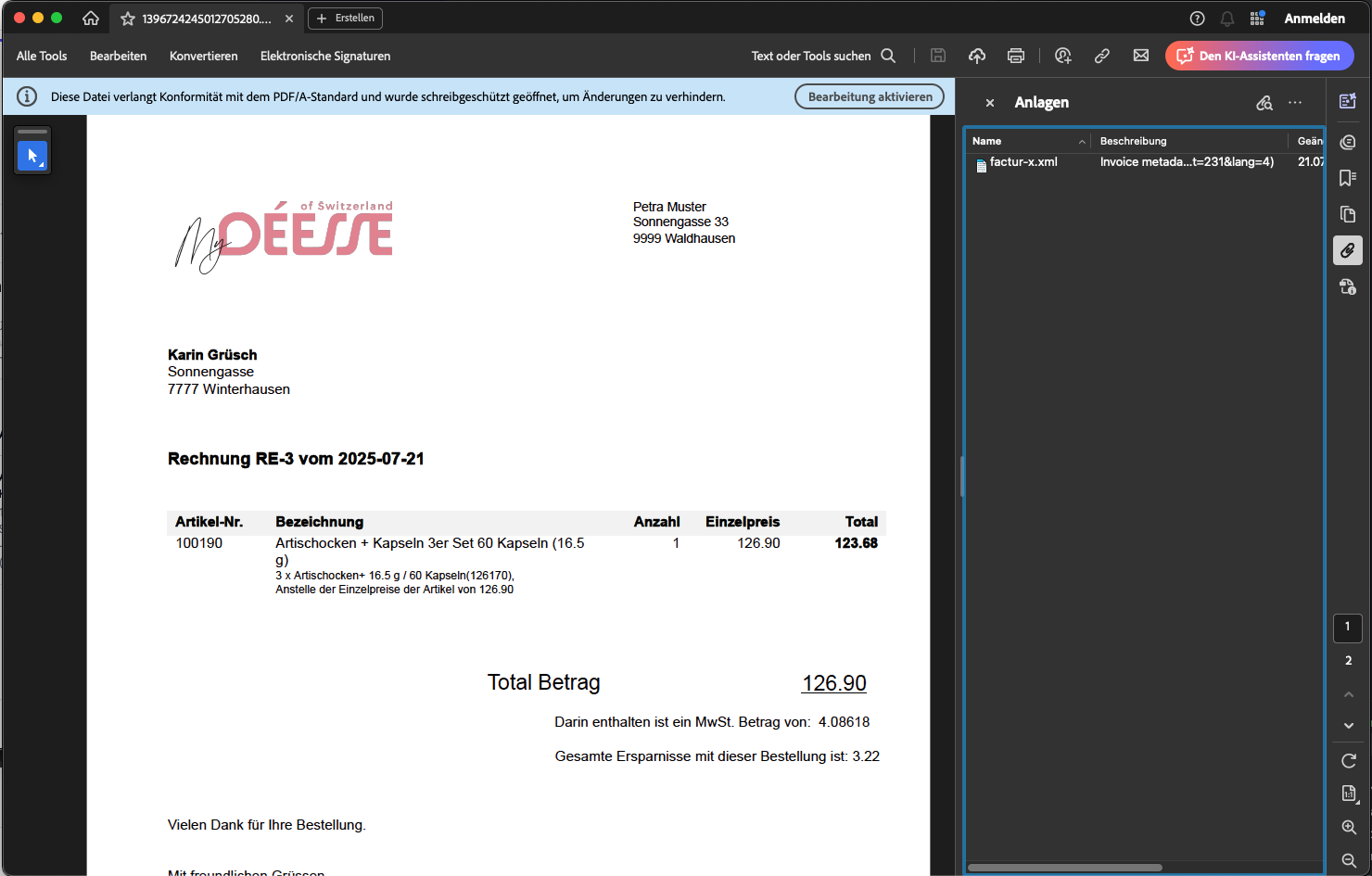
Figure: PDF with an embedded e‑invoice
Note: if recipients need a particular profile, agree the format/version in advance.
4️⃣ Posting an incoming payment
You can record incoming payments in two ways:
✅ 4.1 Directly in the invoice
- Open the invoice.
- Click the banknote icon.
- Choose the payment method (e.g. bank transfer) and the date.
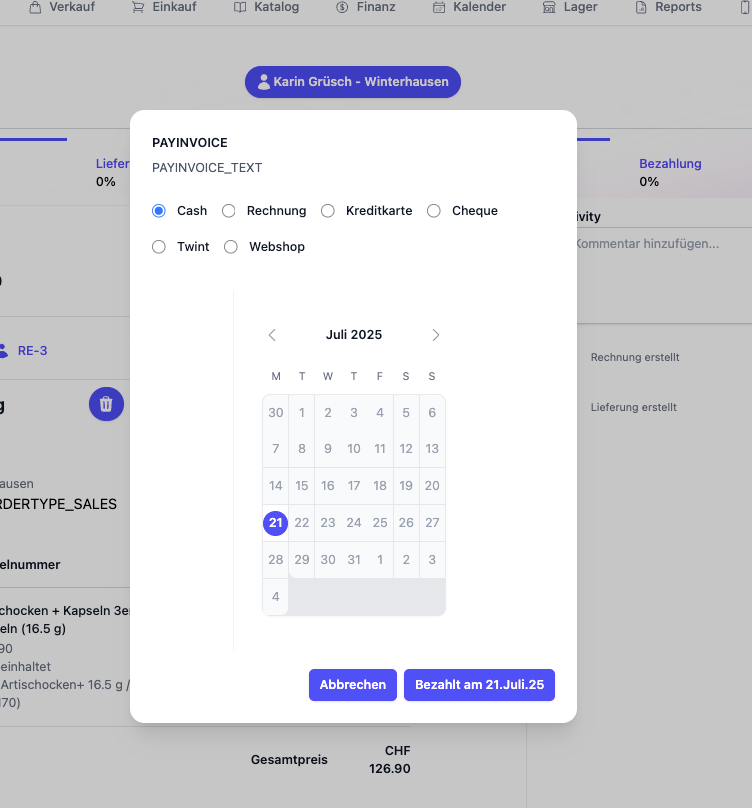
📚 4.2 In the trial balance
- Go to Trial balance → Unpaid invoices
- Find the invoice
- In the PAIDON column, click the banknote icon
- Enter the payment method and the date
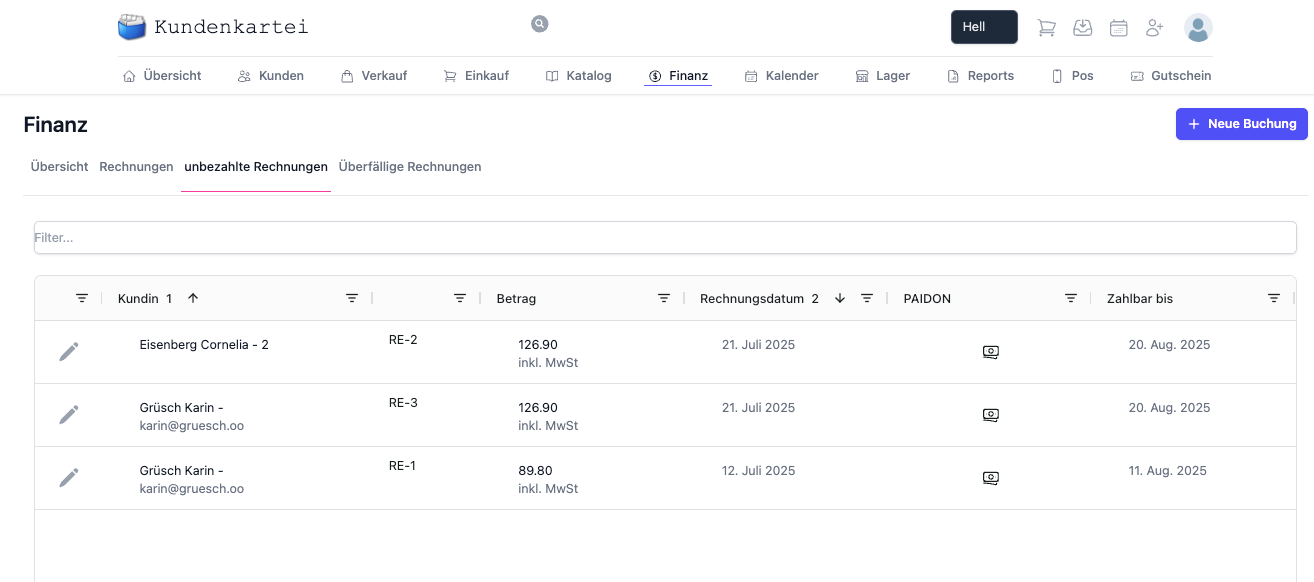
Figure: a payment in the trial balance
As soon as the full amount has been posted, the payment progress bar is set to 100 %.
Part payments: you can record several payments. The balance stays open until 100 % is reached.
➕ Credit notes and cancellations
- Need a correction? Create a credit note for the invoice.
- Wrong invoice? Use a cancellation (as long as it has not been paid).
- Credit notes reduce the open or already paid amount according to the posting date.
Tip: in the credit note, refer to the original invoice number for clean traceability.
5️⃣ The automated dunning process
The integrated dunning process informs customers automatically when a payment is overdue.
🔁 How it works:
- Dunning levels and periods can be configured under:
⚙️ Settings → Dunning - E‑mail templates for reminders can be customised individually
- No payment → an automatic e‑mail with the appropriate dunning level
Best practice: set up a friendly first reminder (payment reminder) without a fee, followed by escalating levels.
❓ Frequently asked questions (FAQ)
Why can I not save the invoice?
- Check the mandatory fields (customer, at least one line)
- Is the tax rate/unit correct?
- Session expired? Reload the page and try again
How do I post a part payment?
- Record the payment with the amount received
- The system marks the invoice as “Partially paid”; the rest stays open
Can I change an invoice that has already been sent?
- Changes are only possible in the “Draft” status
- After sending: use a credit note or a cancellation
The e‑invoice is not recognised by the recipient – why?
- Forward the PDF unchanged (do not print/convert it again)
- Check whether the recipient supports ZUGFeRD, and which version
🔗 Related topics
📝 Change history
| Version | Date | Changes |
|---|---|---|
| 1.3 | 20 August 2025 | Status/workflow added, credit notes, FAQ extended |
| 1.2 | 27 July 2025 | Structure and language completely revised |
| 1.1 | 23 July 2025 | Screenshots and introduction optimised |
| 1.0 | First version | Origin of the page |