Purchasing
The Purchasing module supports you in procuring items – from determining requirements through the order to checking, delivery and payment. Déesse invoices can also be imported conveniently.
📋 1. Determining requirements and purchase planning
- Create purchase lists on the basis of open orders or stock movements
- Automatically monitor the defined minimum stock levels
- The system shows items for which a reorder is recommended
Tip: plan with delivery times and safety stock. Check items with a high turnover rate regularly to avoid supply bottlenecks.
🧾 2. Ordering from the supplier
Orders can either be:
- recorded directly in the system
- placed externally and imported as a file
This is how you create an order in the system:
- Select the supplier, set the reference/order number
- Add the items you want (quantity, price, discount, currency)
- Set the expected delivery date and save
📥 3. Importing a Déesse invoice
You can transfer invoices from the Déesse web shop directly into Kundenkartei.
Step by step:
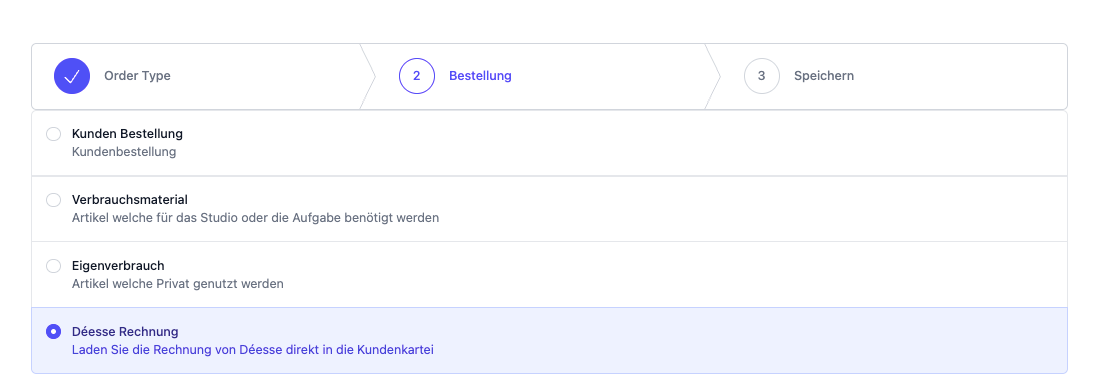
In the Purchasing module, click the “+ New order” icon

Choose the type “Déesse invoice”
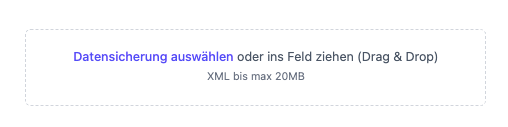
Upload the XML file you exported from the Déesse web shop
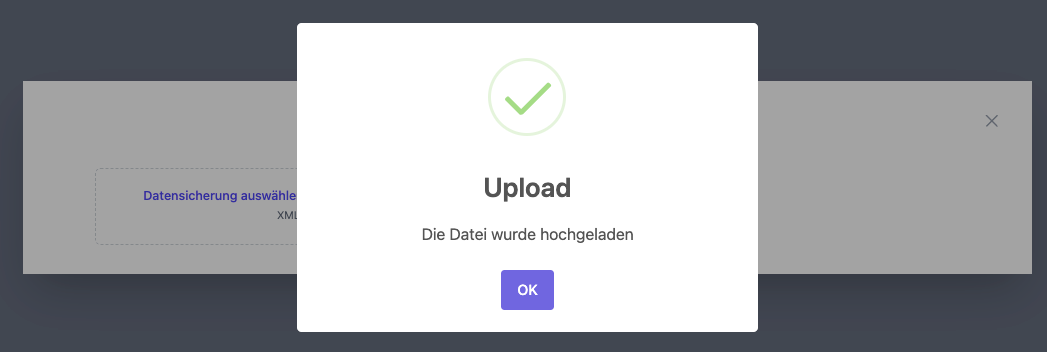
After a successful import you receive a confirmation
The imported invoice appears in the order overview
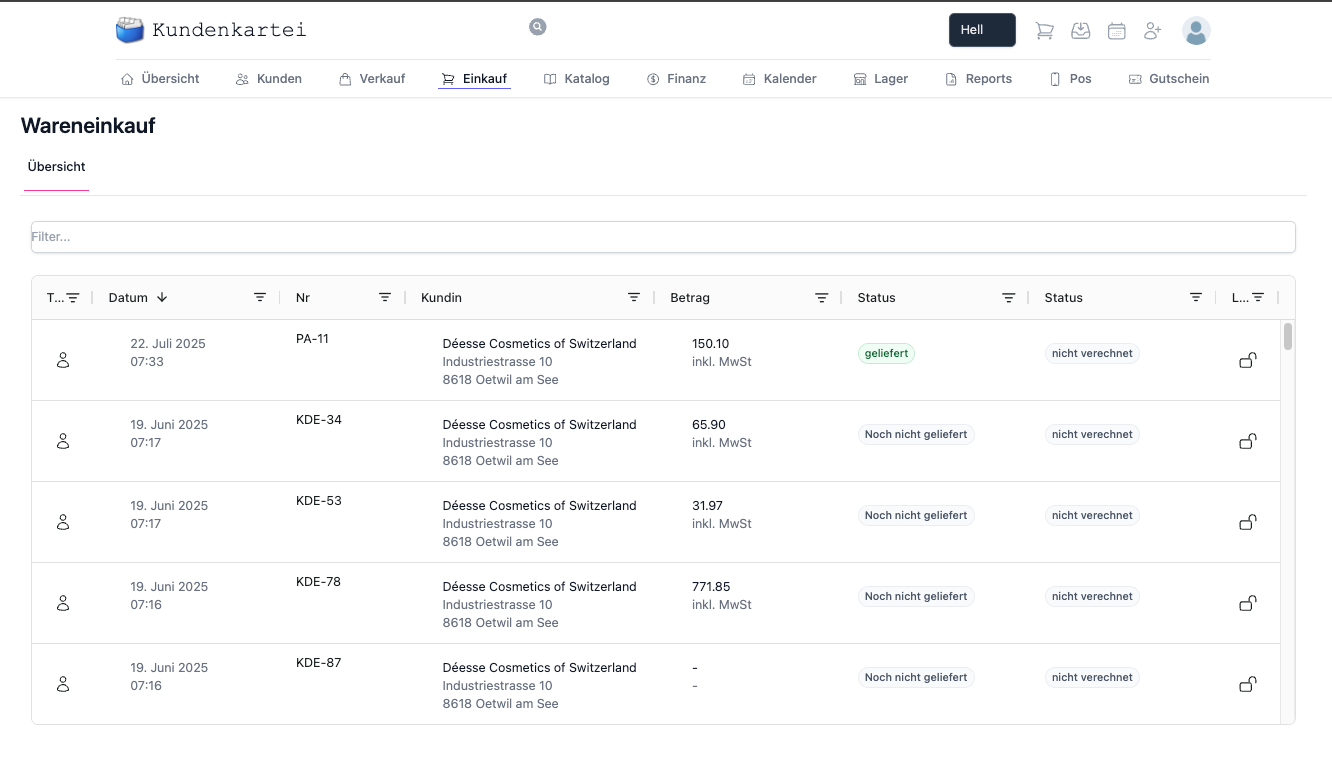
Note: make sure the supplier “Déesse” is stored correctly in the system (name/ID), so that lines and prices are assigned cleanly.
📦 4. Documenting the goods receipt
- Check the delivery for completeness and correctness
- Post partial or complete deliveries
- The system updates the stock level automatically
Serial/batch numbers: record them at goods receipt for full traceability. Partial goods receipts are possible; open remaining quantities stay visible.
🔁 5. Invoice matching and payment
- Kundenkartei checks automatically whether the order and the invoice match:
- Quantity
- Prices
- Delivery date
- Discrepancies are highlighted in colour
- The release for payment takes place after the check
Best practice: store standard purchase prices with the item. Order prices are carried over as needed or marked as a discrepancy.
🏦 6. E‑banking integration
- Generate QR invoices directly in the system
- Export payment instructions in XML format for your e‑banking
Tip: before exporting, check the due date, the payment account and the currency. Test the import in your e‑banking once, to verify the target format.
🔄 Status and workflow
| Status | Meaning | Next step |
|---|---|---|
| Draft | Order created, not yet fixed | Check the lines/prices, save |
| Ordered | Transmitted to the supplier | Await the goods receipt |
| Partially delivered | Only part has arrived | Post the remaining quantity, chase if needed |
| Fully delivered | Everything has arrived | Check the invoice, release it for payment |
| Completed | Delivery and payment completed | Archive the transaction |
Caution: only make changes to prices after goods receipt with a documented correction posting, to preserve traceability.
✅ Best practices
- Use minimum stock levels and delivery times for automatic reorder recommendations
- When prices change, create traceable notes/documents
- Post partial deliveries promptly, so that availability in the warehouse is correct
- Reconcile supplier invoices and goods receipts once a month
❓ Frequently asked questions (FAQ)
Why can I not post the goods receipt?
- Check whether the order has been saved and is in the “Ordered” status
- Make sure the quantities are > 0 and the units are correct
The imported Déesse invoice shows the wrong items – what should I do?
- Check the supplier “Déesse” and the item number/barcode mapping
- Upload the XML file unchanged (do not save/convert it again)
Can I record a partial invoice?
- Yes, recorded partial invoices reduce the open amounts; the rest stays open until the final invoice