✉️ Communication and document dispatch
With the Kundenkartei web app you send documents such as invoices, quotes or orders efficiently by e‑mail, export them as a PDF/Word file – or make them available in the customer portal. This page guides you through the setup, best practices and troubleshooting.
1️⃣ Configuring e‑mail dispatch
📤 SMTP settings
- Store your own mail server (SMTP) or use the system dispatch
- Define the sender address/name, the reply address and the signature
- Optional: separate dispatch profiles for individual modules/domains
Tip: use a sender domain with correctly configured SPF, DKIM and DMARC entries, to increase deliverability and trust.
🧪 Testing and validation
- Send a test mail to an internal address
- Check the spam/junk folder
- Observe your provider’s dispatch limits (rate limits)
🚫 Error handling and logs
- Check the returns (bounces) in the dispatch log
- Read the rejection reasons (e.g. “Mailbox full”, “Policy rejection”)
- Contact your provider/IT if there are blocklist notices
2️⃣ Printing and exporting documents
🧾 Document types
- Invoices, quotes, delivery notes, orders, credit notes
📄 Output formats
- A single PDF (ready to print)
- Word (DOCX) – for editorial adjustments
- Batch printing (e.g. all open invoices as a PDF stack)
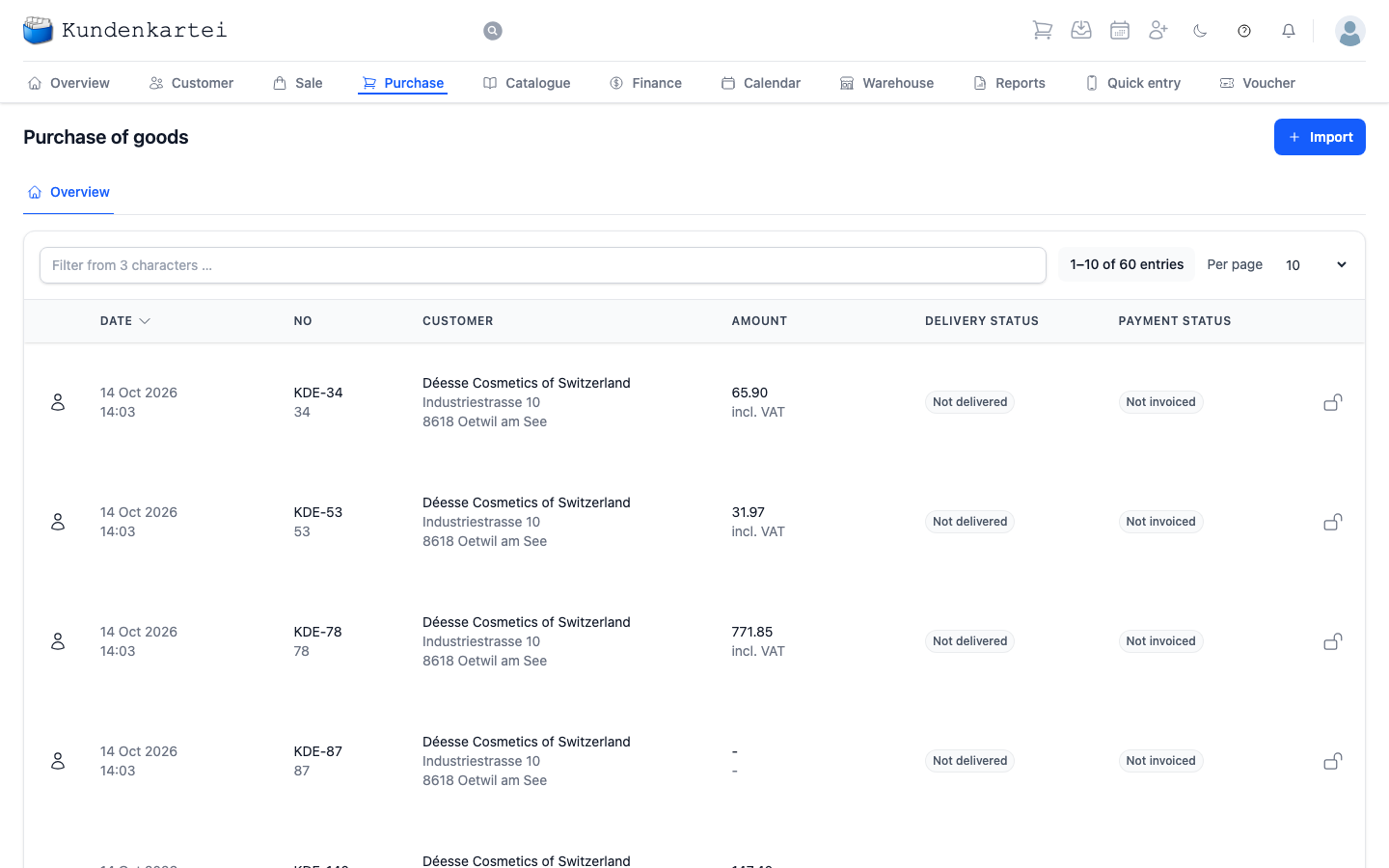
Figure: the document overview in the system
Note: for e‑invoices, the PDF can contain embedded XML (compatible viewers/ERPs recognise this automatically).
3️⃣ Customer portal (sharing documents securely)
- Share documents via a portal link instead of sending them as an attachment
- Optional protection mechanisms: expiring links, PIN/password
- The customer receives the link by e‑mail and can download the documents securely
Best practices:
- Prefer to share confidential documents via the portal
- Check the download status in the customer history
4️⃣ Templates and layouts
Design your business documents in your own corporate design.
🎨 Customisable elements
- Logos (light/dark), colours, fonts, margins
- Headers/footers with the imprint and contact details
- Multilingual placeholders (the language is set automatically per customer)
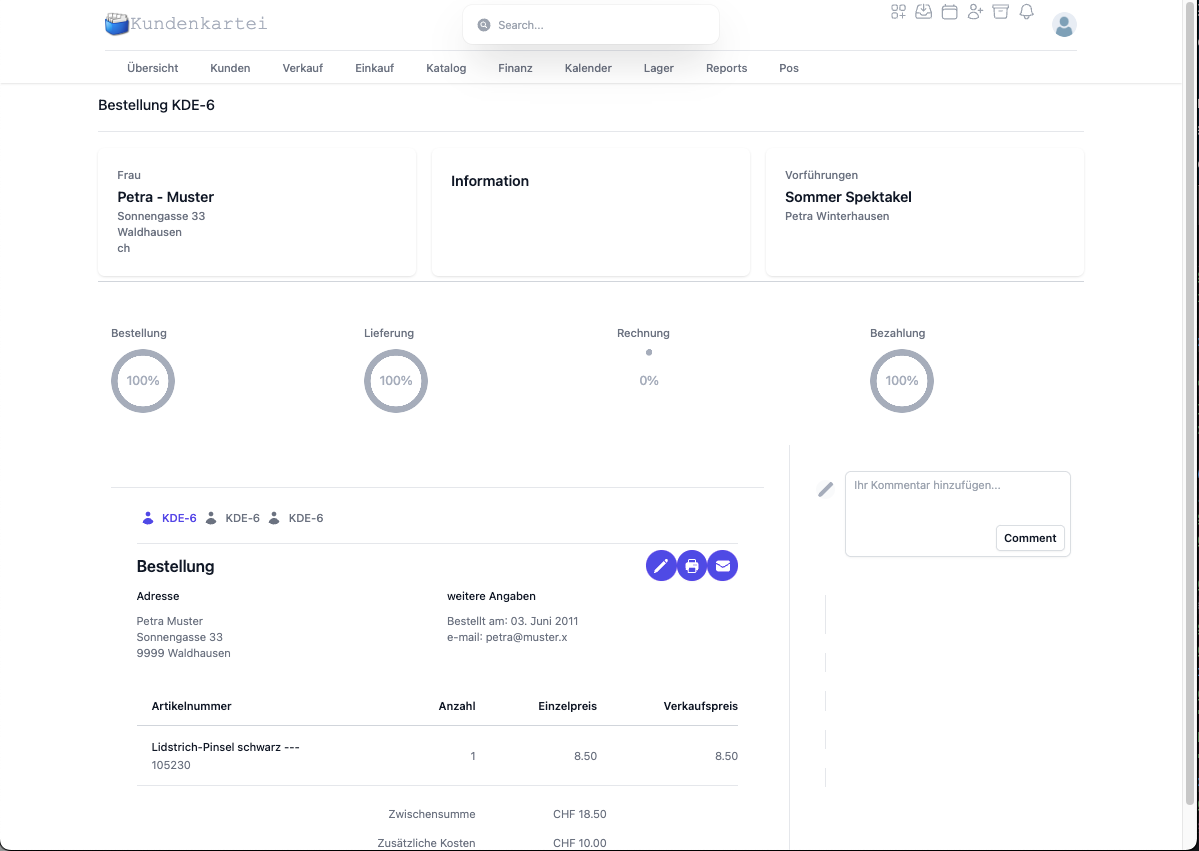
Figure: the editable template structure
Tip: version the templates (e.g. “Invoice_v2025-07”), test them with sample documents and only release the changes afterwards.
5️⃣ Placeholders – a short reference
- Customer: name, address, e‑mail, language
- Document: number, date, due date, currency
- Lines: item number, designation, quantity, price, discount, tax rate
- Totals: net, tax, gross, shipping/additional costs
Note: watch out for the correct spelling of the placeholders. Placeholders that are not recognised stay visible unchanged.
✅ Best practices
- Keep the e‑mail sender and signature consistent (corporate design)
- Use PDF as the standard dispatch format, Word only for internal editing
- Use batch printing for recurring routines (e.g. reminders)
- Check the templates and texts regularly (legal information, terms and conditions, tax rates)
- Share confidential documents via the customer portal
❓ Frequently asked questions (FAQ)
E‑mails do not arrive – what should I do?
- Check the SMTP credentials, send a test mail
- Are SPF/DKIM/DMARC set correctly?
- Check the spam/junk folder, observe the dispatch limit
Why is the logo in the PDF blurred?
- Use a higher resolution (width: ~1000–1500 px)
- Prefer the PNG image format, check the margins in the template
Placeholders are not replaced – why?
- Check the spelling (upper and lower case)
- Have you chosen the right template for the document type?
- Run a test with a minimal example
May I send sensitive documents by e‑mail?
- It is better to use a protected portal link
- With e‑mail: consider password protection/a ZIP file and communicate the password separately
🔗 Related topics
📝 Change history
| Version | Date | Changes |
|---|---|---|
| 1.2 | 20 August 2025 | Portal, placeholder reference, best practices and FAQ extended |
| 1.1 | 27 July 2025 | Structure, language and images revised |
| 1.0 | Original | First version |