Settings
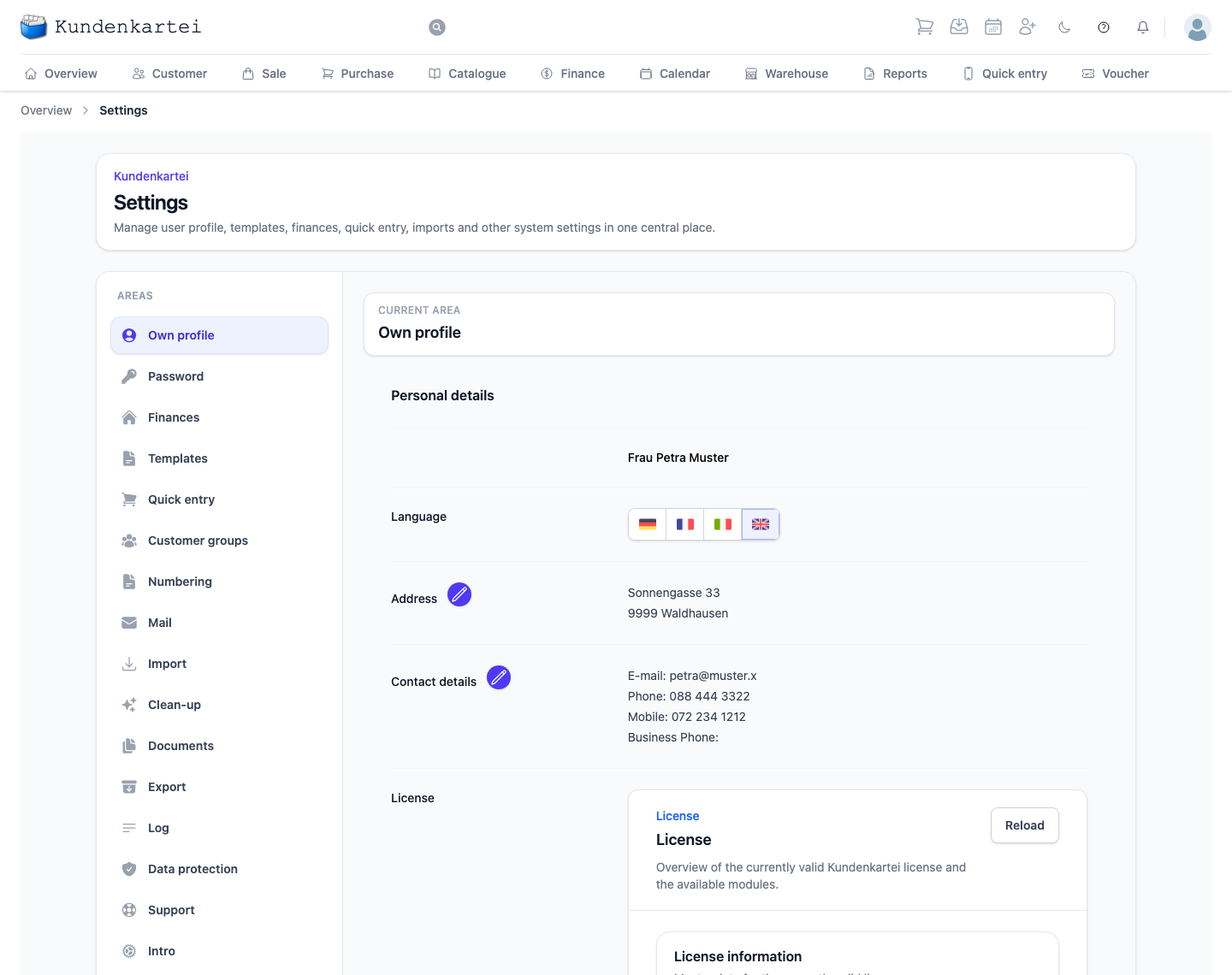
Under Settings you set the Kundenkartei up for your business. Everything that applies everywhere else is determined here.
How the page is built
On the left is the list of Areas, on the right the one you have opened. At the top right, Current area tells you at any moment where you are — useful, because the areas differ greatly and it is easy to lose your bearings when switching.
The order of the list is not accidental. At the top is what concerns you; further down what concerns the business; at the very bottom what you look at once and then rarely again.
The sixteen areas
Own profile
Your own details: form of address and name, address, contact details — and the Language of the interface, as a row of four flags.
Below that is your License: who it is for, the licence e-mail address, the licence key and Valid to. Show modules expands the list of modules it includes.
If your country is Switzerland, the QR invoice block follows. It holds the details that appear on the payment part of your invoices: name and address, IBAN and currency.
Below it, in every country, is the VAT block: whether you are VAT registered, your VAT number (only if registered), your tax number and your company or register number. Registration only affects the e-invoice, not prices or the invoice itself — more on the Own profile page.
The pencil symbols beside Address, Contact details, QR invoice and VAT open the block for editing. What has no pencil you do not change yourself.
Password
The area is called Password and shows your User profile: the details of your sign-in as the sign-in service holds them. It is your own profile — not that of other people in the business.
Logout sits at the bottom right. It signs you out, for instance before you leave a shared computer.
Finances
The foundations of your bookkeeping, all relating to a financial year. The selection at the top right determines which year you are setting up. The page header shows its name and its state: Active or Inactive, and additionally Locked for a locked year.
Four tabs side by side:
| Tab | What you set |
|---|---|
| Chart of Accounts | which accounts exist |
| Preferences | status (active, locked), name, period, rounding and chart of accounts of the year — with the Invoice numbers card below |
| Booking specifications | for each entry, the accounts for full and reduced VAT — currently view only |
| Additional costs | cost types such as postage that are charged alongside the articles — currently view only |
In the Preferences tab you lock a year once it is closed. A lock set by mistake can be released again. How that works is explained on the Finances page.
Two tabs do not save yet
Booking specifications and Additional costs show what has been set up but cannot currently be saved. The page says so itself, and the Save button is locked there. Whatever you change is gone as soon as you leave the page.
Templates
Every document your customers get to see, and some for yourself — such as Order form, Delivery note, Invoice template, Cancellation invoice, Voucher, Envelope, Addresses labels, Customer report, Trial balance template and more.
On the left you choose the template type, on the right you see its templates. The tick shows which are active; a click on it switches a template on or off. Several can be active — the Kundenkartei then asks which one you want when printing. The last active template of a type cannot be switched off: “At least one template per type must stay active.”
Two buttons for the selected template type sit above the list:
- Download standard template fetches the standard template as a Word file — the best starting point if you want to design your own.
- Use standard template appears as soon as one of your own templates is active. Afterwards the standard template applies again; your own stay in the list and can be switched on again.
Two ways to a new template: Upload template takes your own Word file (DOCX, 2 MB at most) for an order, delivery note or invoice. If the Kundenkartei rejects it, the message tells you why — for instance because the title already belongs to a standard template. Template shop opens a collection of ready-made templates. What you choose there is added to your active templates; the existing ones stay active.
The last tab on the left is called Text block. It holds the Text blocks that appear on orders, delivery notes and invoices. A click on a row opens the text for editing. Placeholders in the text must stay exactly as they are — the dialog shows them and will not save otherwise. Reset to default text brings back the original text.
Quick entry
Here you build the keys you tap in Quick entry. Each tab is a key group — in the picture arranged by women’s and men’s products or by treatment.
How you group them is your business. What makes sense is what you reach for day to day, not how the catalogue is sorted.
Customer groups
Groups are the tool with which you order your index — for example by newsletter, hostesses or training. A customer can be in several.
Each row shows the name and the first members as initials. New entry creates a group. The pencil opens the group: there you change the name, switch it Active or not, and move customers between the available and the selected ones. Only an active group can be chosen elsewhere. The padlock at the front is an indicator, not a button.
When deleting
Delete a group and the membership disappears for all customers. The customers themselves are untouched — the assignment is gone. The page says so itself, just above the list. If you only need a group out of the way for now, switch it inactive instead.
Groups are the basis for mail merges and mailings under Reports.
Numbering
Here you determine what the numbers of your documents look like — per Fiscal year and per number range. At the top right you choose the year; the active one is preselected.
Each number range has a block of its own, with its prefix and the badge In use or Not yet used. In it you set:
- the Format — Continuous or Per year, in which case the year of the fiscal year precedes the number
- the Digits — the number is padded with zeros to this many digits
- the Next number — leaving it empty means: change nothing. “It can only be raised, never lowered.”
- Prefix in the number — whether the prefix is part of the number
This is what the next number looks like shows you the result before you save. Each block has its own Save changes button; only that one range is saved. If a range carries the In use badge, numbers have already been issued from it. A change then requires a Reason of at least ten characters. If the Kundenkartei rejects a change, the reason appears directly below the block.
Numbering and invoice numbers
You can set invoice numbers in two places: here, together with all the other number ranges, and under Finances in the Preferences tab, Invoice numbers card. Both change the same numbers. The card under Finances is tailored to invoices: it offers only the two permitted forms, creates the invoice range for a new year and shows the Gap report. For invoices it is therefore the simpler route — more on the Finances page.
Mail
The sender details for e-mails you send from the Kundenkartei: your Sender address, plus First Name and Family Name.
The sender address is the most important detail. Your customers’ replies go to it, and you receive your copy there. If it is entered here, the mail dialog already shows it when you send an order, a delivery note or an invoice. If it is missing, you have to enter an address yourself in the dialog every time you send — without one the e-mail does not go out. First and family name appear as the sender in the templates.
You do not set up a mailbox of your own with server, port and password. The page says: “Mail is sent through the Kundenkartei server. Server, port and access are configured there and cannot be changed here.”
Import
Two tabs: Customer and Backup.
Under Customer you upload a spreadsheet, as XLSX or CSV, or drag it into the field. With an XLSX file only the first worksheet counts.
What matters is the two-step sequence: after reading in, you first see a Preview. Nothing is adopted until you press Import. So you can check at leisure what would arrive.
Which columns the file needs and in what order is revealed by the Structure of the import file section. Read it before building the file — that saves you a second attempt.
Under Backup you upload a backup of your Kundenkartei, as a ZIP or SQL file. The Kundenkartei rebuilds your index from it — whatever was in it before is replaced. Your own templates are not included in the backup and must be uploaded again if needed. While the backup is being processed, the page shows only the Import area with the progress of the run — step by step. You need do nothing and can close the window; the next time you sign in you will see the progress here again. Do not upload the backup a second time. If the run stops, the page names the step and tells you whether support has already been informed.
Every new customer from an import gets a consecutive customer number. Customers who are already in your records are recognised and updated instead of being created twice. The country may be given as a code (CH, DE, DK) or as a name ("Switzerland", "Denmark").
Clean-up
Tidying up your records, right after the import — that is usually where whatever has to go again comes from. For now there is one item: duplicate customers. It shows customers that are identical in every detail and removes the surplus ones that have nothing attached. More on the Clean-up page.
Documents
Every document created for you: orders, delivery notes, invoices. The table has the columns Document number, File name — with the kind of document above it —, Recipient and Created, plus a button at the end of the row that downloads the file. Newest first.
This is what makes a document findable without knowing what the file is called. For older documents not every detail can still be determined; there it says not determinable.
Export
One row per fiscal year: whether the year is locked or open, the state of the export and its version. Create yearly data starts the run; after a finished export the button is called Create again. Any year can be exported — a locked one as an Archive, an open one as a Snapshot.
The run creates the year’s documents afresh and needs a few minutes for that when there are many invoices. Once it is finished, Download and Link for 90 days appear.
The link needs no sign-in
Anyone who has the link fetches the file without signing in — even after your licence has expired, until the date shown. Pass it on only to whoever the data belongs to.
Log
An overview of every message that has arisen during work: notices, system messages, errors. Per entry the type, title, message, date and time.
If it says No log entries available, nothing has occurred. A click on a row shows the full message, which you can copy to the clipboard. The Save JSON button files the log as a document — that is what support needs from you when something does not work.
Data protection
A single switch: Send error information. When it is on, the application reports anonymised technical errors so that it can be improved. Contents of your index are not transmitted.
If you can flip the switch, your decision applies, and you can change it here at any time. If it says below that the setting “is currently managed centrally by configuration”, the switch is locked and cannot be changed here.
Support
How you get help — and the place where you create a Support code.
Support is easiest by e-mail; the address is on the page. If the support team needs access to your data for your enquiry, you use Create support code here to create a ten-digit code and send it to support by e-mail, together with a short description of your enquiry. To the support centre opens answers and guides in a new window.
A new code replaces the previous one
Create a new code and it replaces the previous one. The page always shows only the current one.
Intro
A guided introduction in eight steps — from the welcome through the main menu, the first customer and the first order to the settings and the support site. You move through it with Back and Next, and Finish ends it.
The intro does not disappear once you have seen it. You can come back here at any time.
Where to begin
If you are new, in this order:
- Own profile — details and language
- Finances — chart of accounts and invoice numbers, before the first invoice arises
- Templates — so that your documents look like you
- Mail — the sender address your customers reply to
- Customer groups — the order on which the mailings later build
- Quick entry — the keys for day-to-day work
Next
- Adjusting the configuration — step by step
- Reports — what you can do with customer groups
- Quick entry — where the keys come into play