Sale
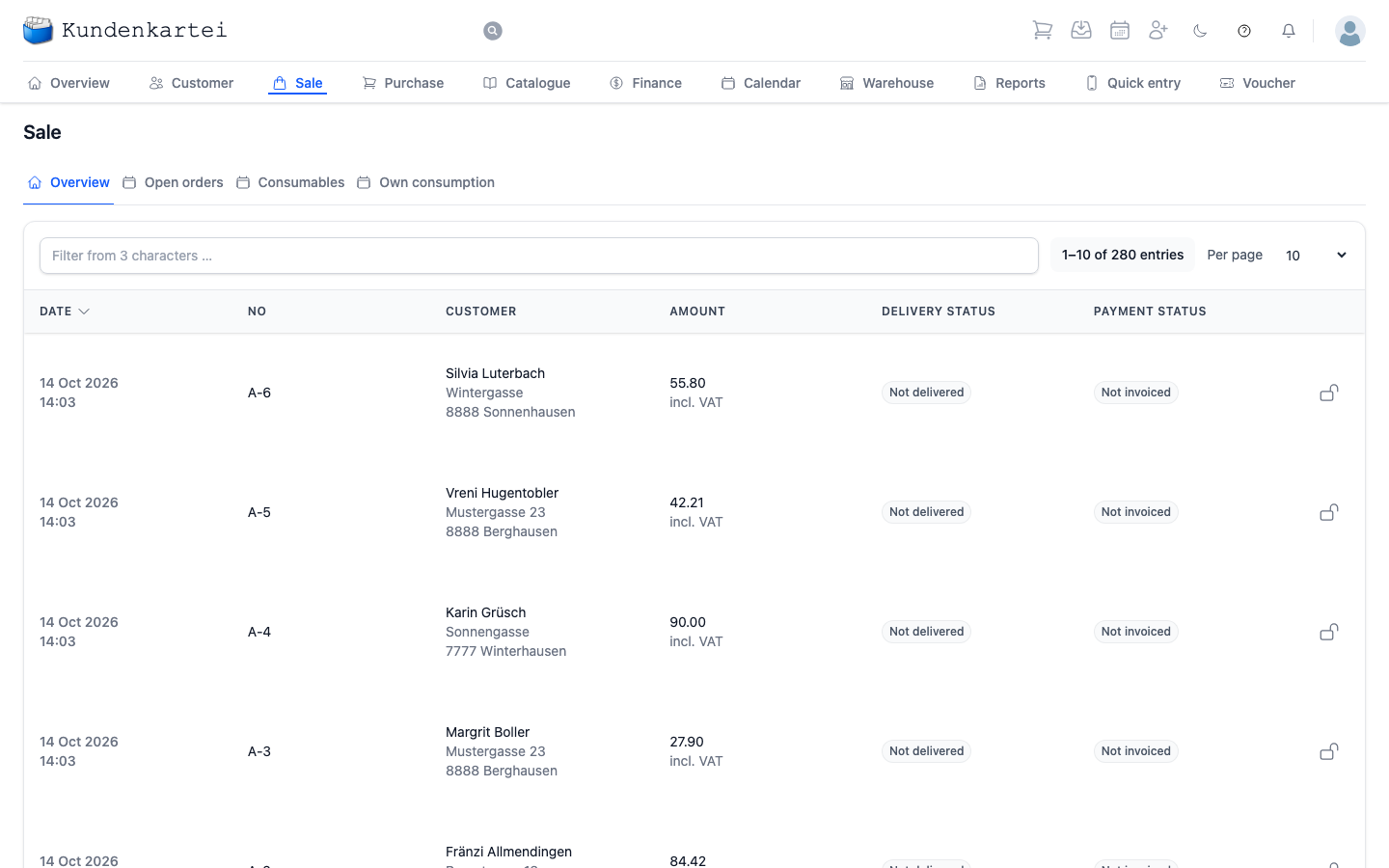
Sale carries your orders — everything you have sold to customers, from the order you have just recorded to the invoice paid long ago.
The page is a list. An order is recorded and edited elsewhere; here you see where it stands.
The four tabs
Four views of the same material sit at the top:
| Tab | What it shows |
|---|---|
| Overview | every order |
| Open orders | what has not yet been delivered |
| Consumables | items you need for the studio or for your work |
| Own consumption | items you use privately |
The last two are not sales in the narrow sense, but they belong in the books — which is why they are here.
Searching and paging
The search field takes effect from three characters and searches the whole row. Beside it is the number of entries; Per page sets the rows per page.
The list is sorted by date, the most recently changed order first. Clicking a column heading re-sorts it.
What a row shows
| Column | Content |
|---|---|
| Date | when the order was last changed, with the time |
| No | the order number |
| Customer | name and address |
| Amount | the total, with “incl. VAT” or “excl. VAT” below it |
| Delivery status | whether it has been delivered |
| Payment status | whether it has been invoiced and paid |
If an order comes from Kundenkartei Desktop and its invoice had a number of its own there, that number appears in the Overview tab below the order number: “In Kundenkartei Desktop: …”. The search field finds the order by this number too.
The two status columns are the heart of it. They answer two questions that have nothing to do with one another: are the goods out? and is the money in?
| Delivery status | Payment status | Colour |
|---|---|---|
| Not delivered | Not invoiced | grey — open |
| Partial deliveries | Invoiced, Partially paid | yellow — under way |
| Supplied | Paid | green — done |
“Invoiced” means the invoice has been issued but the money is not yet in. The two columns run independently of each other — paid and not yet delivered occurs just as much as delivered and not yet paid.
The order
Clicking a row opens the order. It goes straight to the most recent document: the invoice if there is one, otherwise the delivery note, otherwise the order. Progress names the three steps Order, Delivery note and Invoice. From here you start Create delivery and Create invoice; the new document then appears in front.
Where to begin
- What has to go out? Look for “Not delivered”
- Where is money missing? The Payment status column — everything that is not green
- A particular order? Number or customer name into the search field
Next
- Creating an order — from the first line to saving
- Delivery — what comes after the sale
- Invoice — from the delivery to the money