🚚 Delivery
The Delivery module supports the logistical handling of orders. One or more deliveries can be created per order – including partial and complete deliveries as well as dispatch by e‑mail or download as a document.
In brief: from an order you choose the lines and quantities to be delivered, save the delivery and, if required, send the document by e‑mail or download it as a Word file.
✅ Benefits and use
- Structured handling of delivery processes
- The basis for stock movements and inventory management
- Creation of dispatch documents as Word/PDF and dispatch by e‑mail
🧩 Requirements
- An order with at least one line exists.
- You have permission to create deliveries.
- Optional: e‑mail dispatch is configured (sender account).
📦 Creating a delivery – step by step
1) Open the order
Go to Sales → Orders and open an existing order.
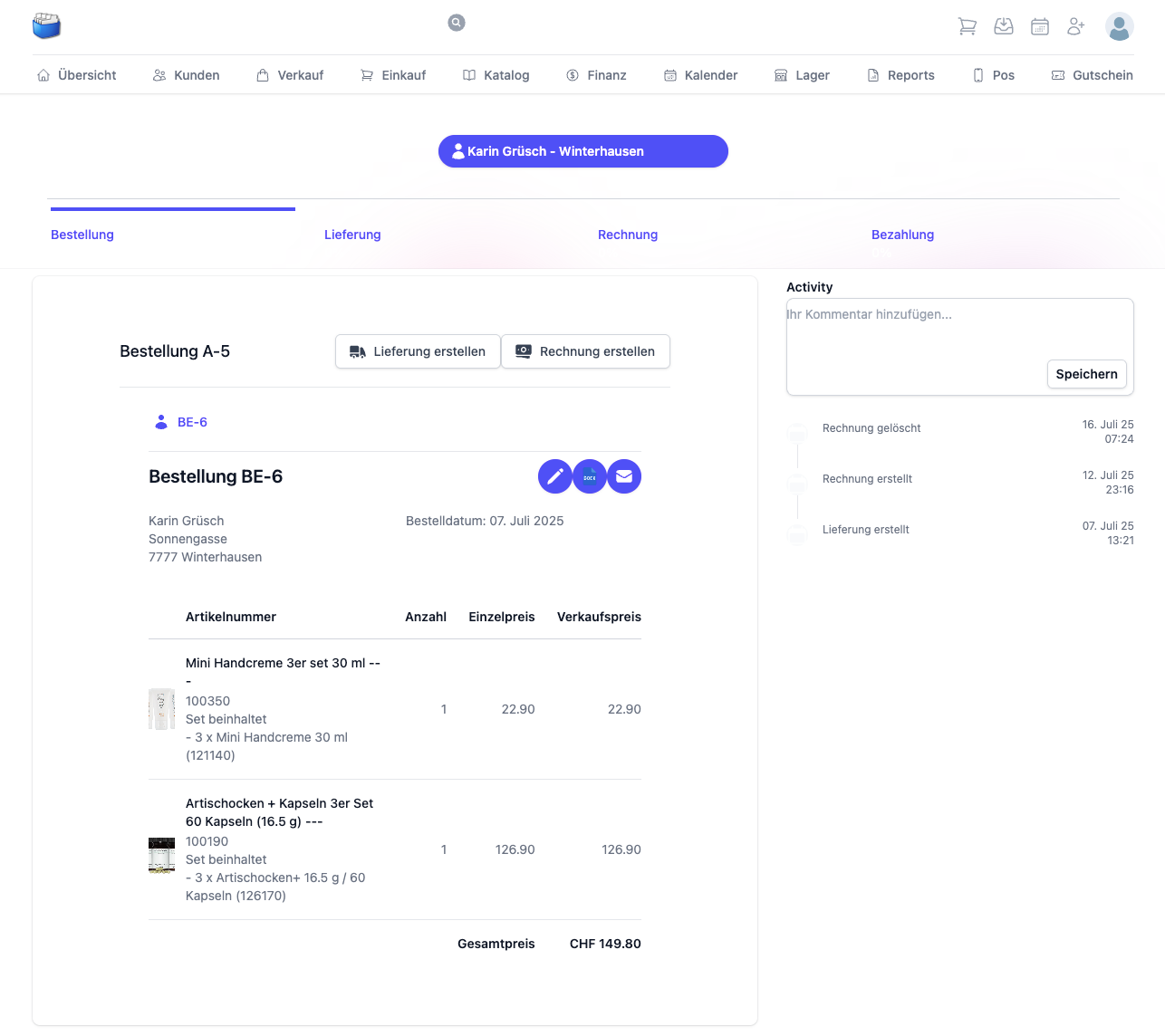
2) Create the delivery
Click “Create delivery” at the top.
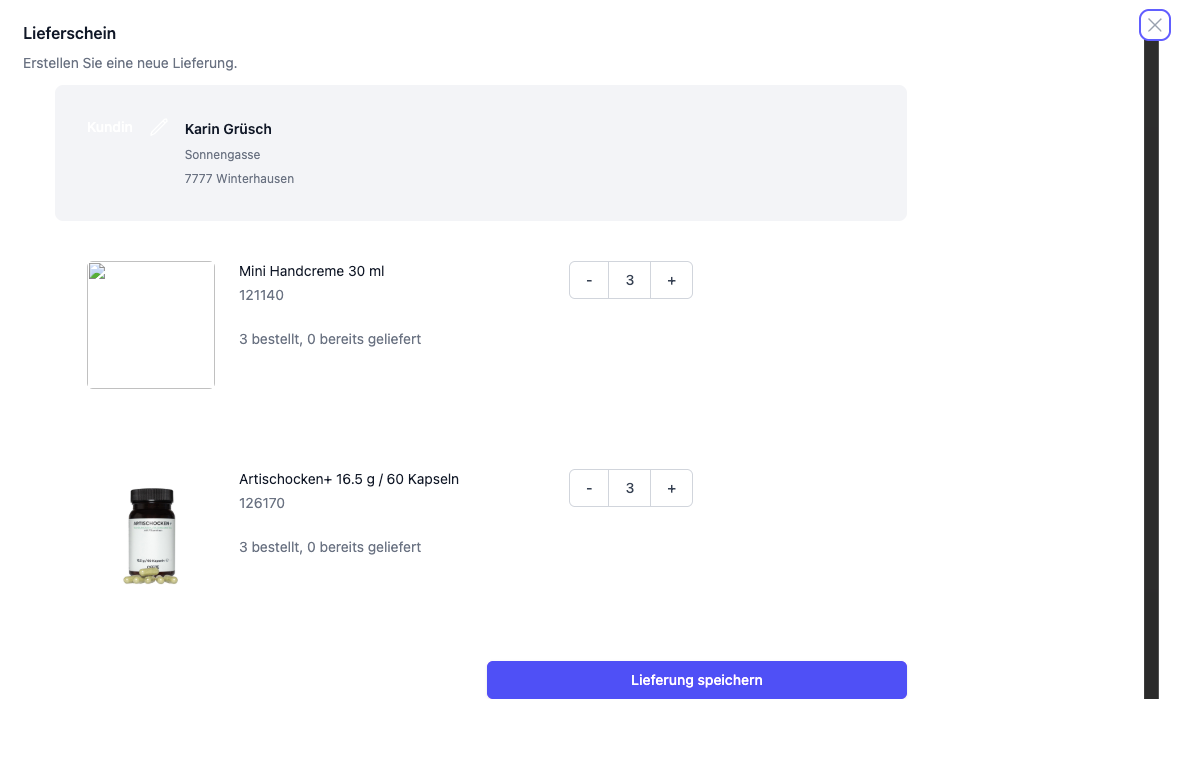
- By default, all lines are carried over with their full quantity.
- Adjust the quantities per item, e.g. for partial deliveries.
3) Understanding partial vs. complete delivery
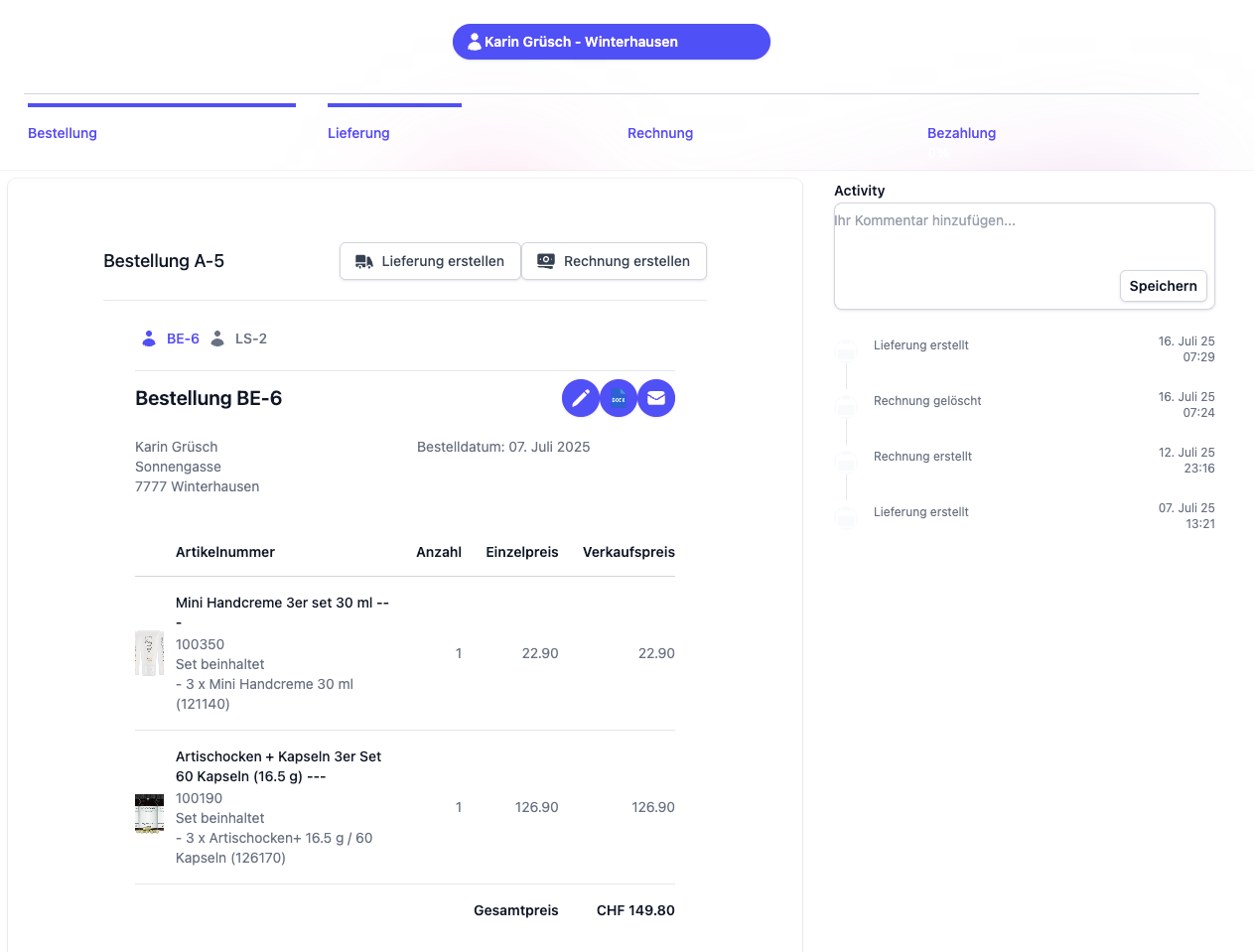
Partially delivered: the progress bar shows the delivered share; the “Create delivery” button stays active so that further deliveries can be created.
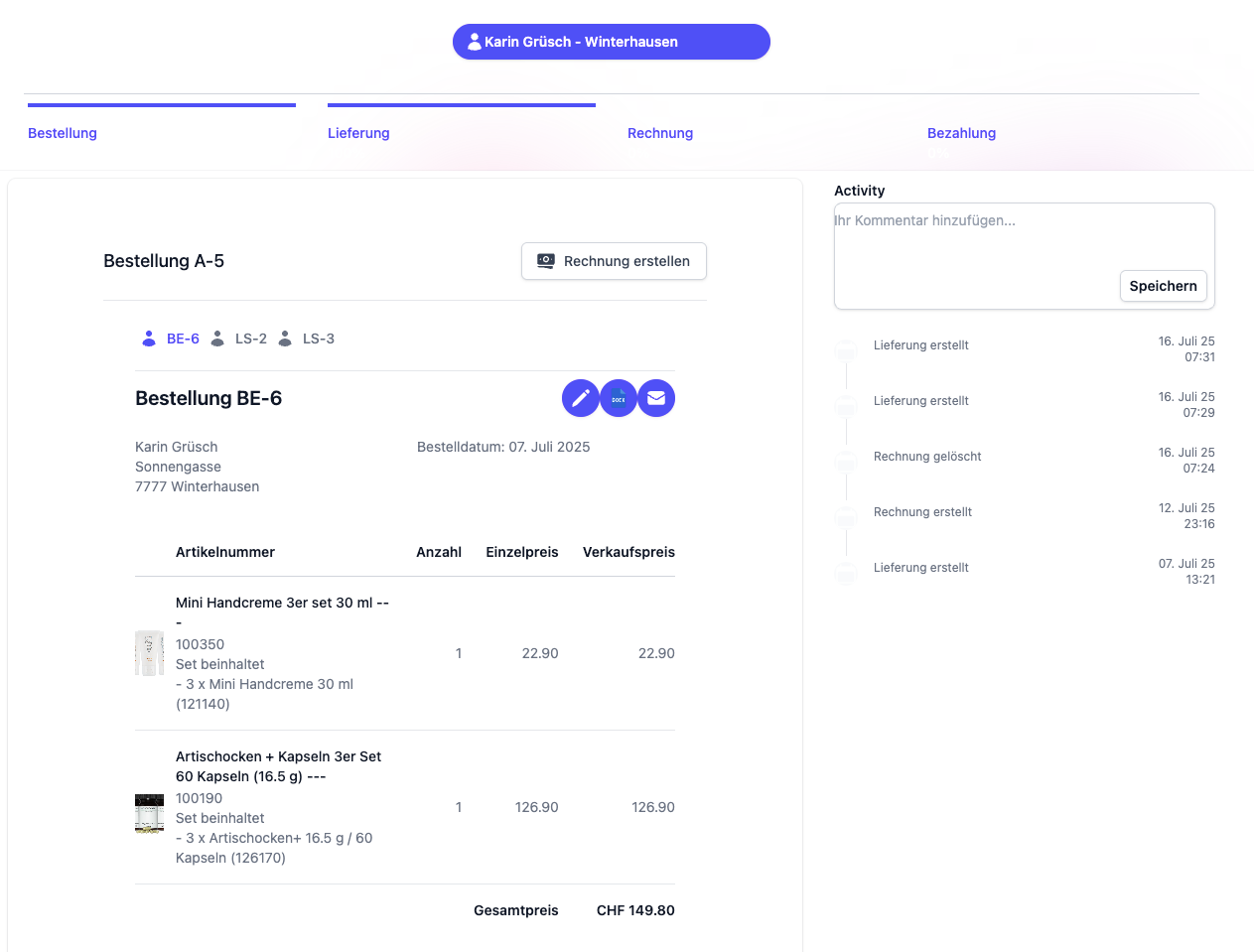
Fully delivered: the progress bar shows 100 %; the “Create delivery” button disappears.
4) Check the quantities and save
Check the lines and quantities and click “Save delivery”.
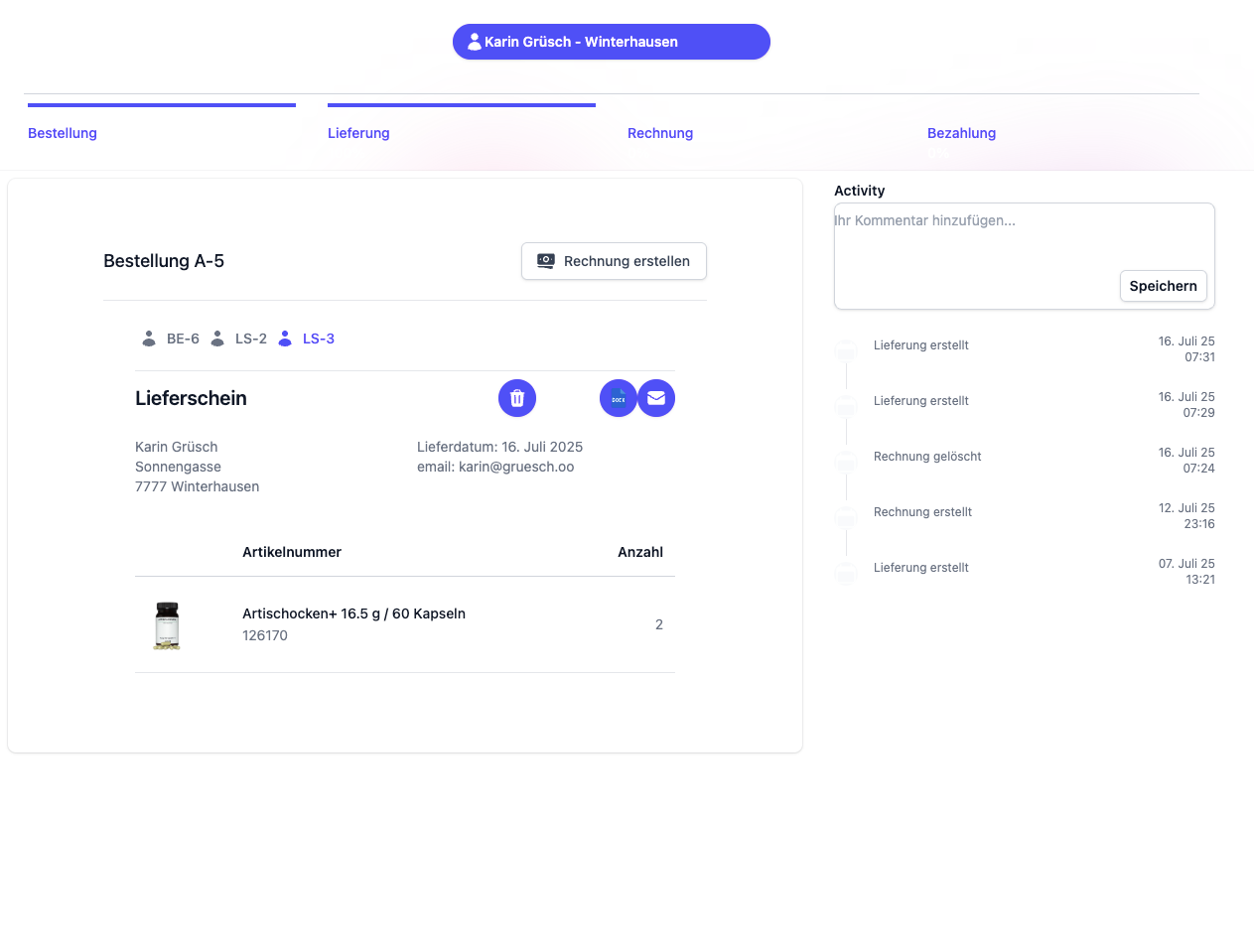
📨 Dispatch and download
After saving, two options are available:
📄 Download the document (Word)
- Click the Word icon.
- The file is generated and downloaded in the browser.
✉️ Dispatch by e‑mail
- Click the e‑mail icon.
- Enter the recipient address(es).
- The delivery is sent along as a Word document attachment.
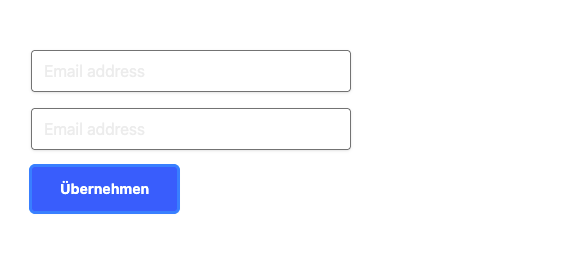
Note: if e‑mails do not arrive, check the spam filter and the stored sender address.
🗂️ Managing deliveries
- In the order view you see all the deliveries that have been created.
- Open a delivery to view the details, quantities and dispatch status.
🗑️ Deleting a delivery
- Click the wastebasket icon (🗑️) to delete a delivery.
- Deleting is only possible as long as the delivery has not been used in an invoice or marked as completed.
❓ Frequently asked questions (FAQ)
Why can I not create another delivery?
The order has already been delivered in full (progress bar 100 %). Reduce the delivered quantities if necessary, or add new lines to the order.Why can the delivery not be deleted?
The delivery has already been processed further (e.g. in an invoice). In that case deleting is blocked.The e‑mail icon is missing – what can I do?
Check whether e‑mail dispatch is configured and whether you have the necessary permissions.
💡 Best practices
- Use partial deliveries to reflect bottlenecks in the warehouse and still serve customers quickly.
- Before dispatch, check the recipient address(es) and any references (order number) in the subject/file name.
- Work with clear internal notes in the order to record delivery priorities.
🔗 Related modules
📝 Change history
| Version | Date | Changes |
|---|---|---|
| 1.3 | 20 Aug. 2025 | Structure revised, FAQ and best practices added |
| 1.2 | 27 July 2025 | Text structure and language optimised |
| 1.1 | 28 June 2025 | Content completely revised |
| 1.0 | Original | First version |