Adding and managing products
In the Catalogue module you manage both the centrally maintained Déesse product catalogue and your own products. Depending on your permissions, you can view, adjust or create items.
📦 1. The Déesse product catalogue (read-only)
The Déesse catalogue is maintained centrally and contains all official Déesse items – including the price, description and variants.
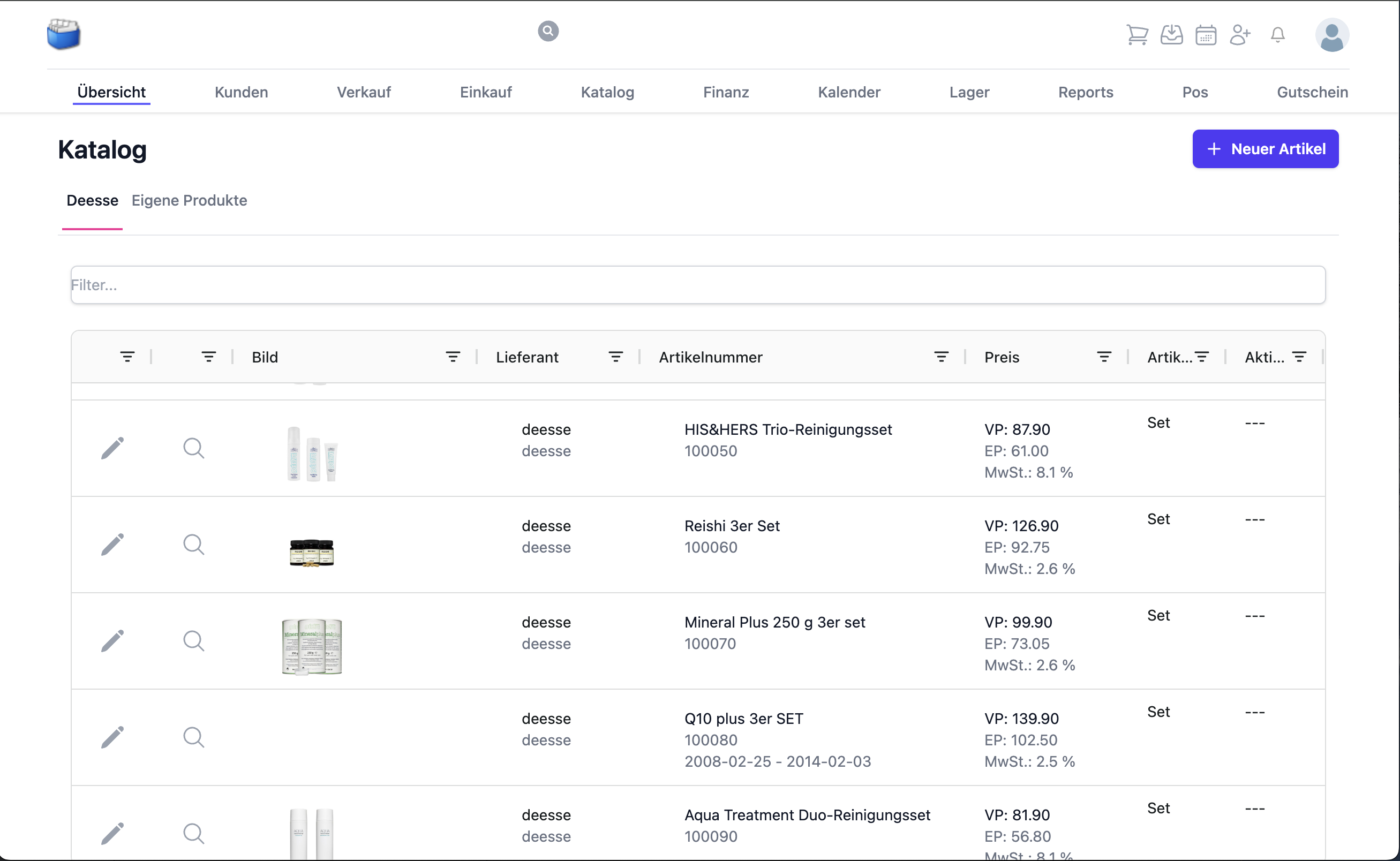
Figure: overview of the Déesse catalogue
- You can view products and add them to orders
- Changes to number, description and prices are not possible
- What belongs to you, you enter for a Déesse item as well: minimum quantity and opening stock in the Stock settings block, the posting accounts and the option Exclude set items from savings. A field that deviates from the default is marked and can be reset with one click
Note: price and text changes in the Déesse catalogue are synchronised regularly.
🛠️ 2. Your own product catalogue (editable)
In the Own products area you can:
- Record and maintain your own items
- Manage, for example, promotional material, training documents or sales accessories
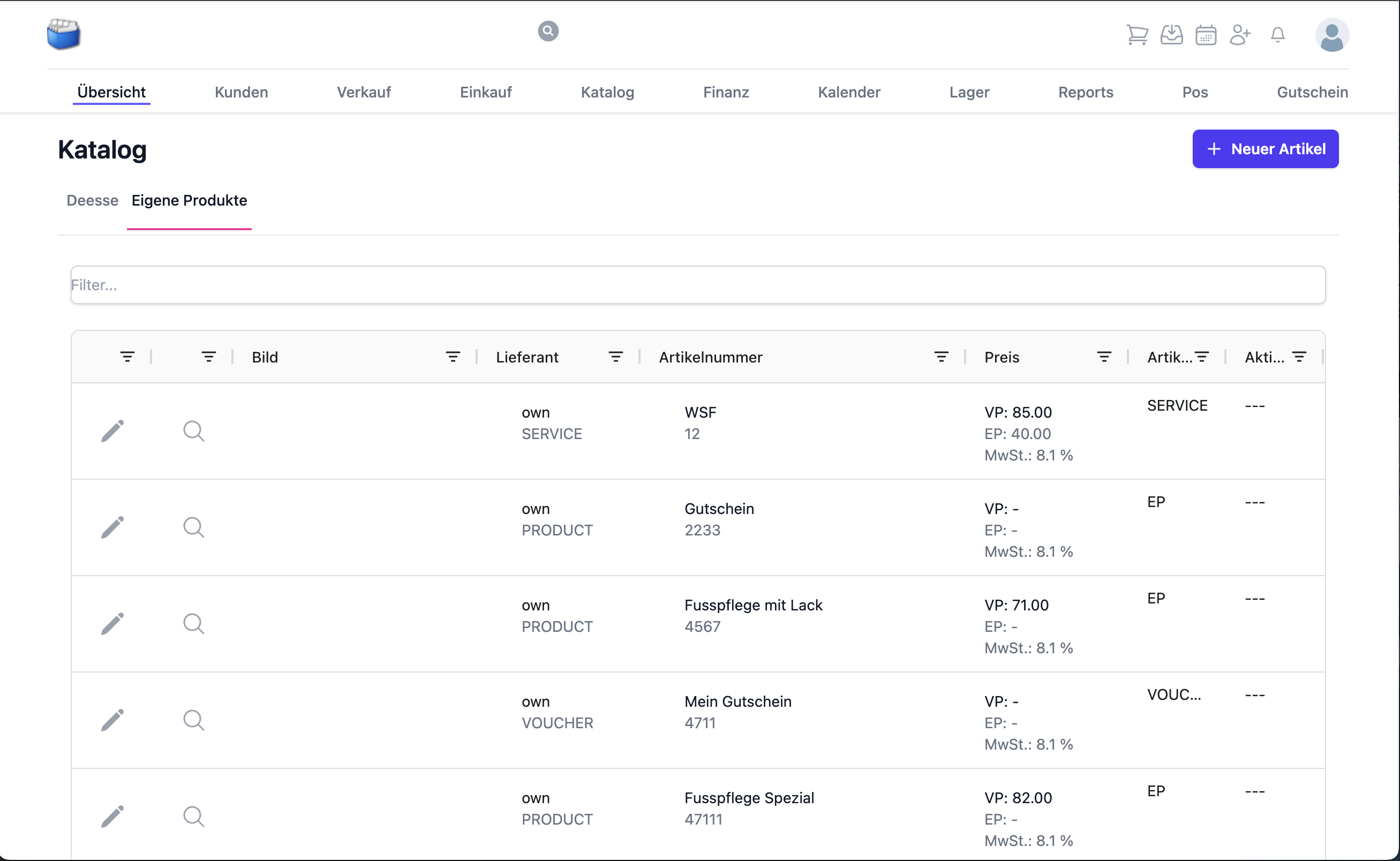
Figure: overview of your own products
Tip: use categories and tags so you can filter faster later (e.g. “Promotion”, “Set”, “Seasonal”).
🔍 3. Displaying product details
Clicking an item opens the detail view with all the relevant information:
- Item number and name
- Description and images
- Prices and variants
- Availability and stock level
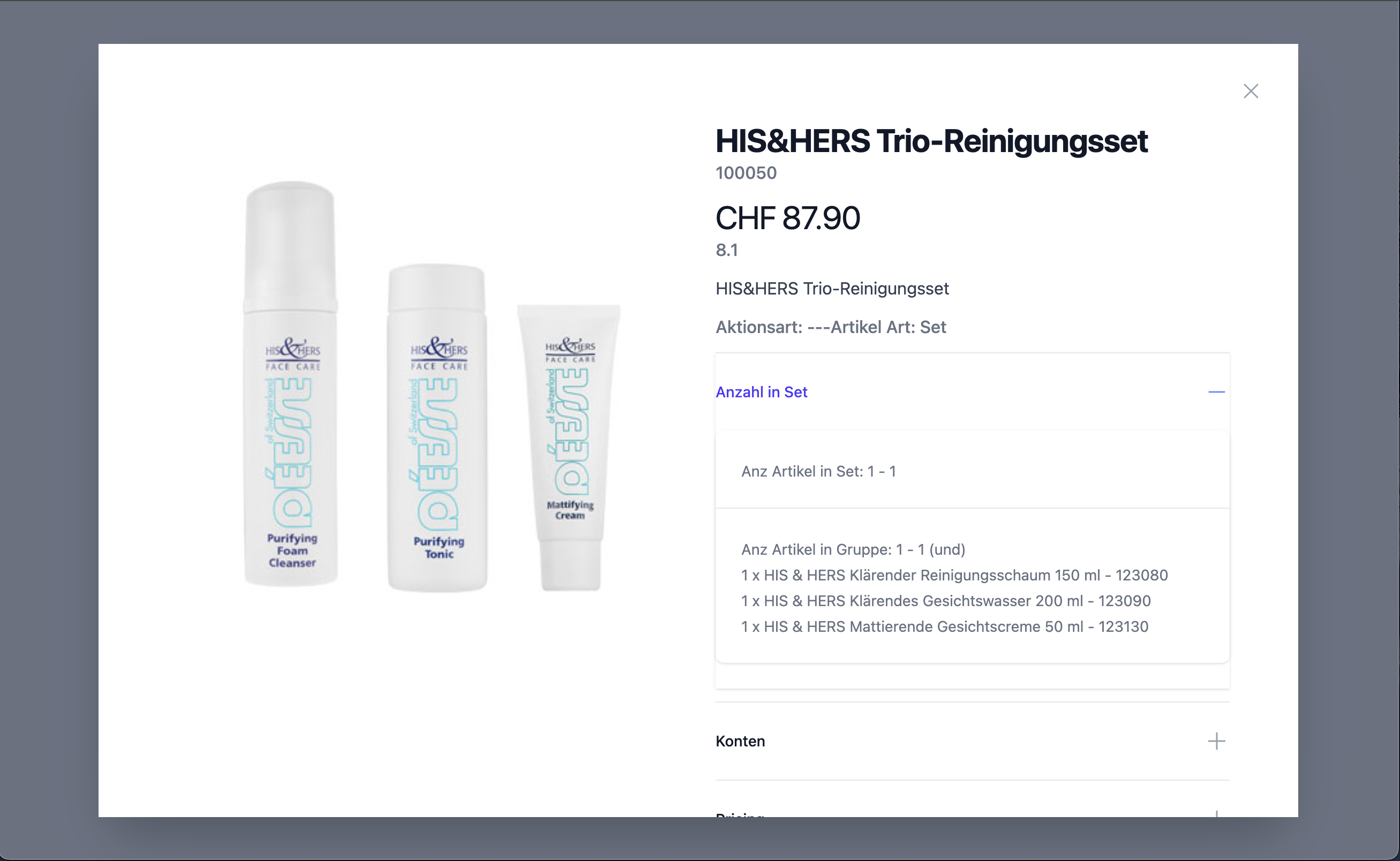
Figure: product details in the catalogue
Important fields in detail
- Unit and content (e.g. pcs., ml, set)
- Tax rate/VAT
- Barcode/EAN for scanners and labels
- Inventory tracking active/inactive
✏️ 4. Editing a product
Your own products can be edited at any time:
- Change the designation, category, prices, description
- Upload or replace product images
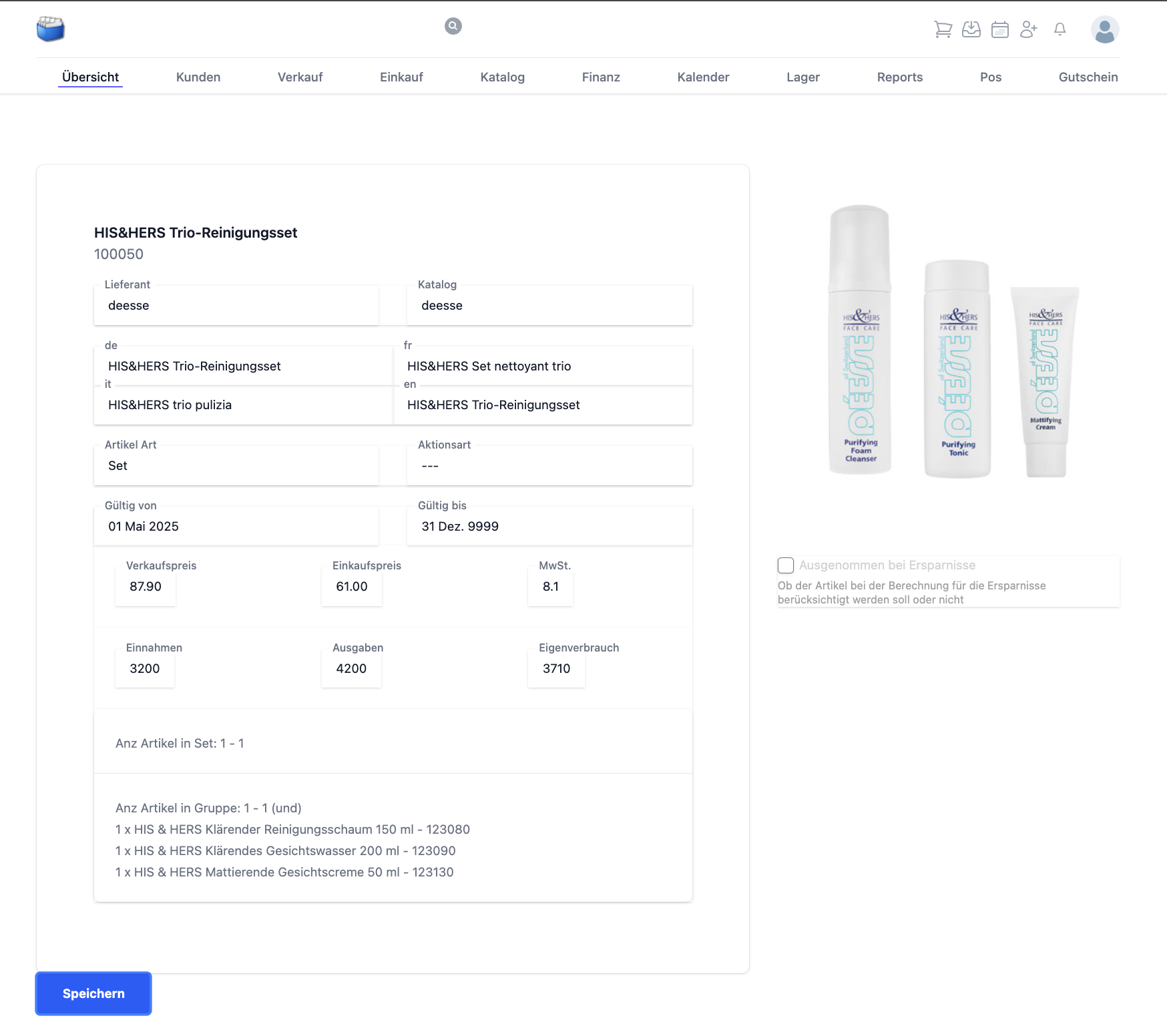
Figure: editing a product
Best practice: use clear, consistent product names and meaningful item numbers (e.g. “WM-Flyer-A5-2025”).
➕ 5. Creating a new item
Click “+ New item” to create a new entry.
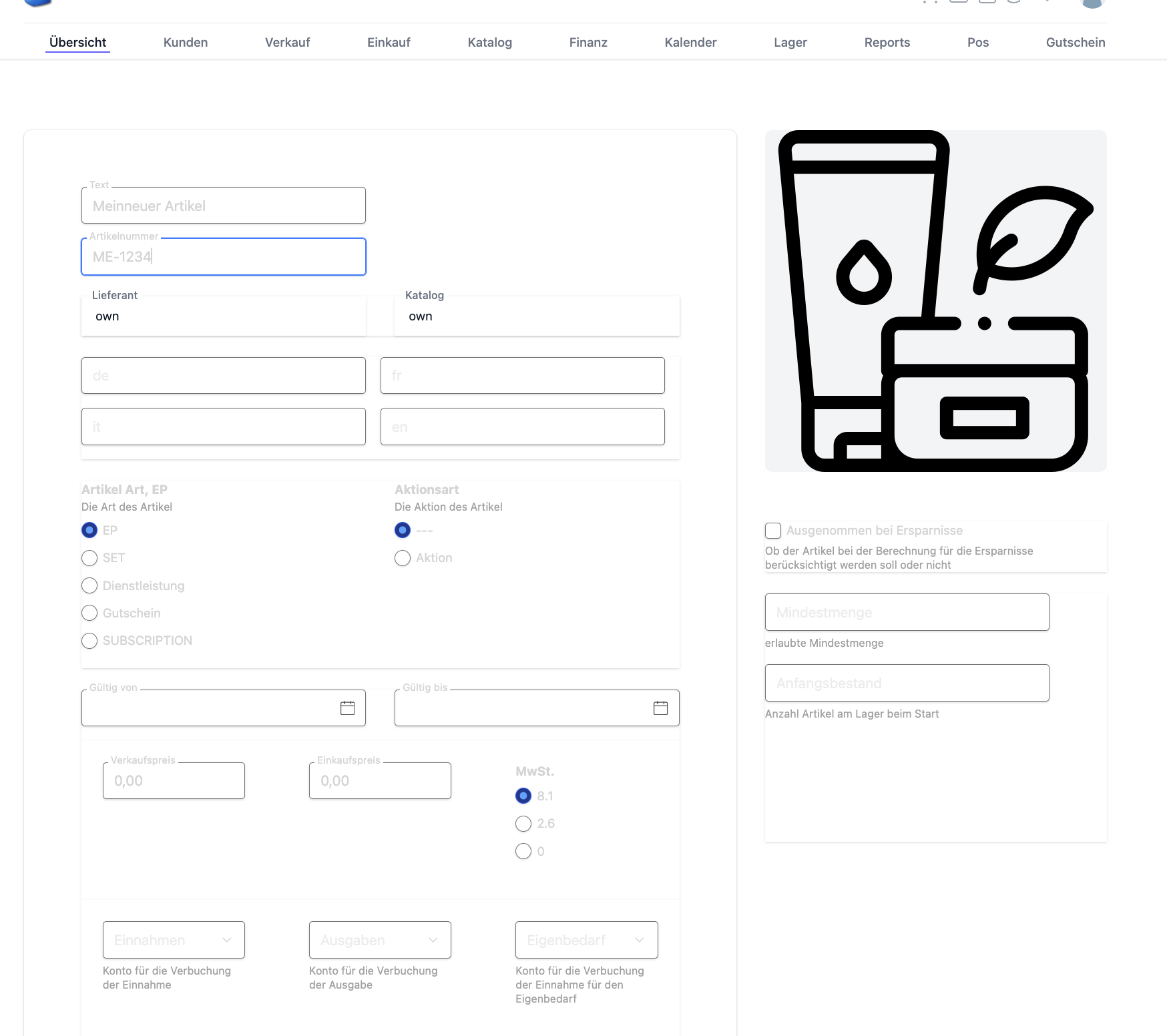
Figure: recording a new item
You can define all the fields freely – from the item number to the price.
Step-by-step recommendation
- Assign an item number and a name
- Choose the category, tags and tax rate
- Store the selling price and, if applicable, the purchase price
- Define the unit and the inventory tracking
- Add the description and images
- Save and check it in the overview
🧩 6. Variants, sets and bundles
- Variants: create sizes/colours, for example, as separate variants of an item
- Sets/bundles: combine several items into one set (a price advantage is possible)
- Note: inventory is tracked per variant or per included item
Tip: for bundles where the individual components leave stock, document the set composition clearly.
💶 7. Prices, taxes and currencies
- The standard selling price including the assigned tax rate
- Optional: the purchase price for the margin/calculation
- Multiple currencies: depending on the configuration, prices can be maintained in the base currency
Before promotions/campaign phases, check the price validity and store time-limited notes/tags.
🧾 8. Barcodes, labels and scanners
- Store the EAN/barcode with the item for fast entry in orders/stock
- Label printing is based on the stored barcode and the product name
- Several barcodes per item (e.g. for variants) are possible
🔁 9. Life cycle: active, archived, replaced
- Active: the product is shown in searches/orders
- Archived: it can no longer be ordered but stays visible historically
- Replaced by: a reference to the successor item for a clean migration
Recommendation: archive instead of deleting, so that histories (orders/stock) stay consistent.
📥 10. Import/export (in brief)
- Export your own products as a file for backup or further processing
- Import: use the predefined templates to create/update many products quickly
When importing, watch out for unique item numbers and correct tax rates.
✅ Best practices
- Use consistent names and categories
- Maintain the barcodes if scanners/labels are used
- Upload images in an appropriate size/quality (web-optimised)
- Archive products when they are discontinued and refer to the successor
- Before going live: check the tax rates and prices on a sample basis
❓ Frequently asked questions (FAQ)
Why can I not edit a Déesse item?
- The Déesse catalogue is read-only. Create your own item if needed, or add information in the order/note.
My item does not appear in the search – why?
- Check whether the item is active, has a category and has not been archived.
- Make sure the spelling in the name/tags matches the search.
How do I maintain different variants (e.g. size/colour)?
- Create variants and store the price, barcode and inventory tracking for each variant.
Can I delete a product?
- Recommended: archive it instead of deleting it, so that orders and stock movements remain traceable.