Creating an order
The Orders module is the core of all sales-related processes in Kundenkartei Web – from the job through the delivery to the invoice and the stock posting.
🧭 Introduction
Orders in the Kundenkartei web app allow you to:
- Record and manage customer jobs
- Handle deliveries and stock movements
- Prepare the invoicing
🔄 The difference between quote, order and invoice
| Document type | Purpose | Effect on the system | Automation |
|---|---|---|---|
| Quote | Preliminary stage of the order | none | ❌ |
| Order | Customer job | Triggers stock and delivery | ✅ |
| Invoice | Invoicing based on the order | Request for payment | ✅ |
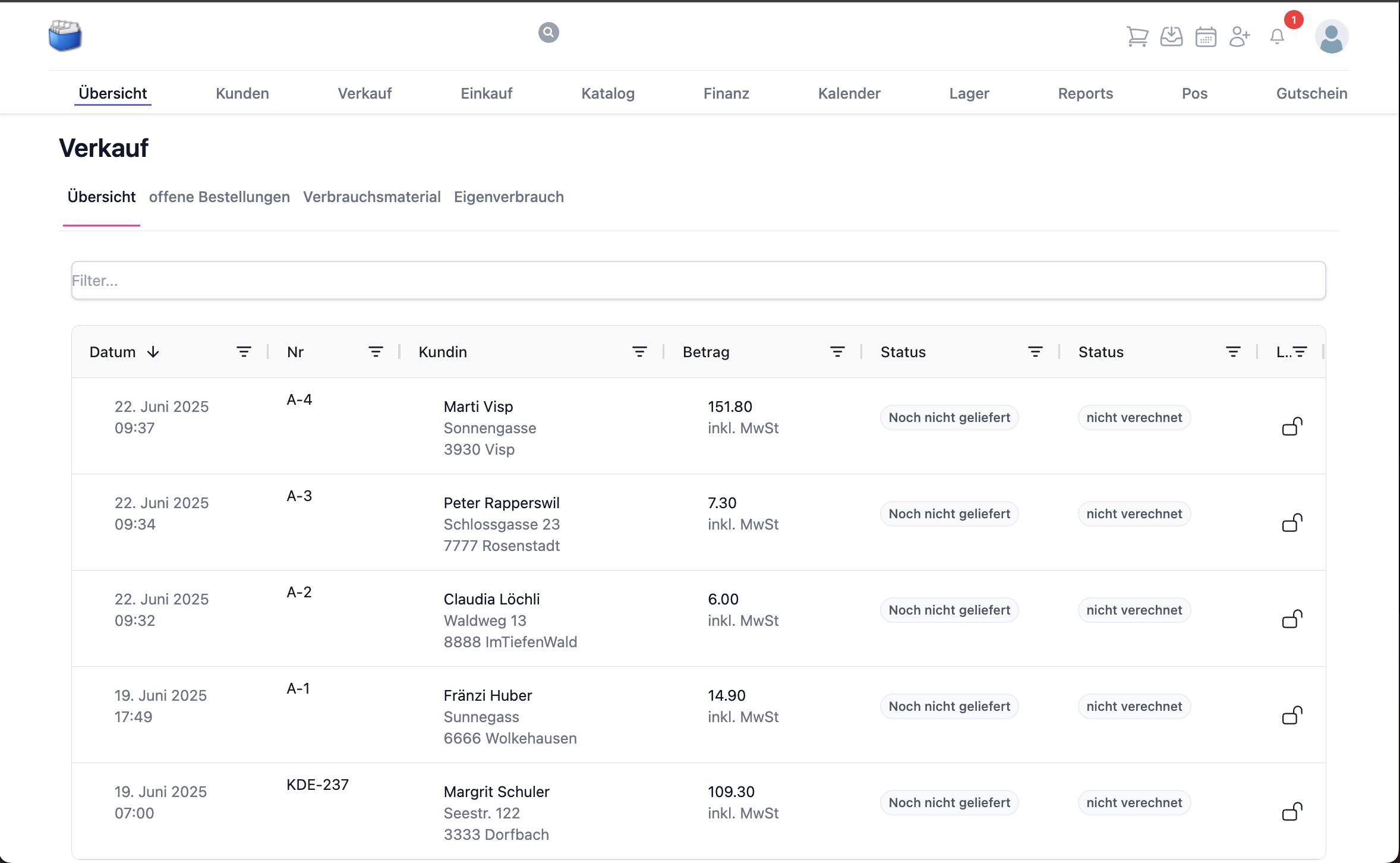
Figure: overview of the sales processes
Status and workflow
| Status | Meaning | Next steps |
|---|---|---|
| Recorded | Order created, not yet binding | Check the lines, save |
| Ready for delivery | Checking completed | Trigger the delivery, create a delivery note |
| Partially delivered | Only part has been delivered | Deliver the remaining quantity later or cancel |
| Delivered | Delivered in full | Create the invoice |
| Cancelled | Transaction aborted | Stock movements reversed where applicable |
Tip: use partial deliveries when stock is missing, so that items already available can be dispatched promptly.
📝 Recording an order – step by step
1. Start a new order
- Go to Sales → Orders
- Click “+ New order”

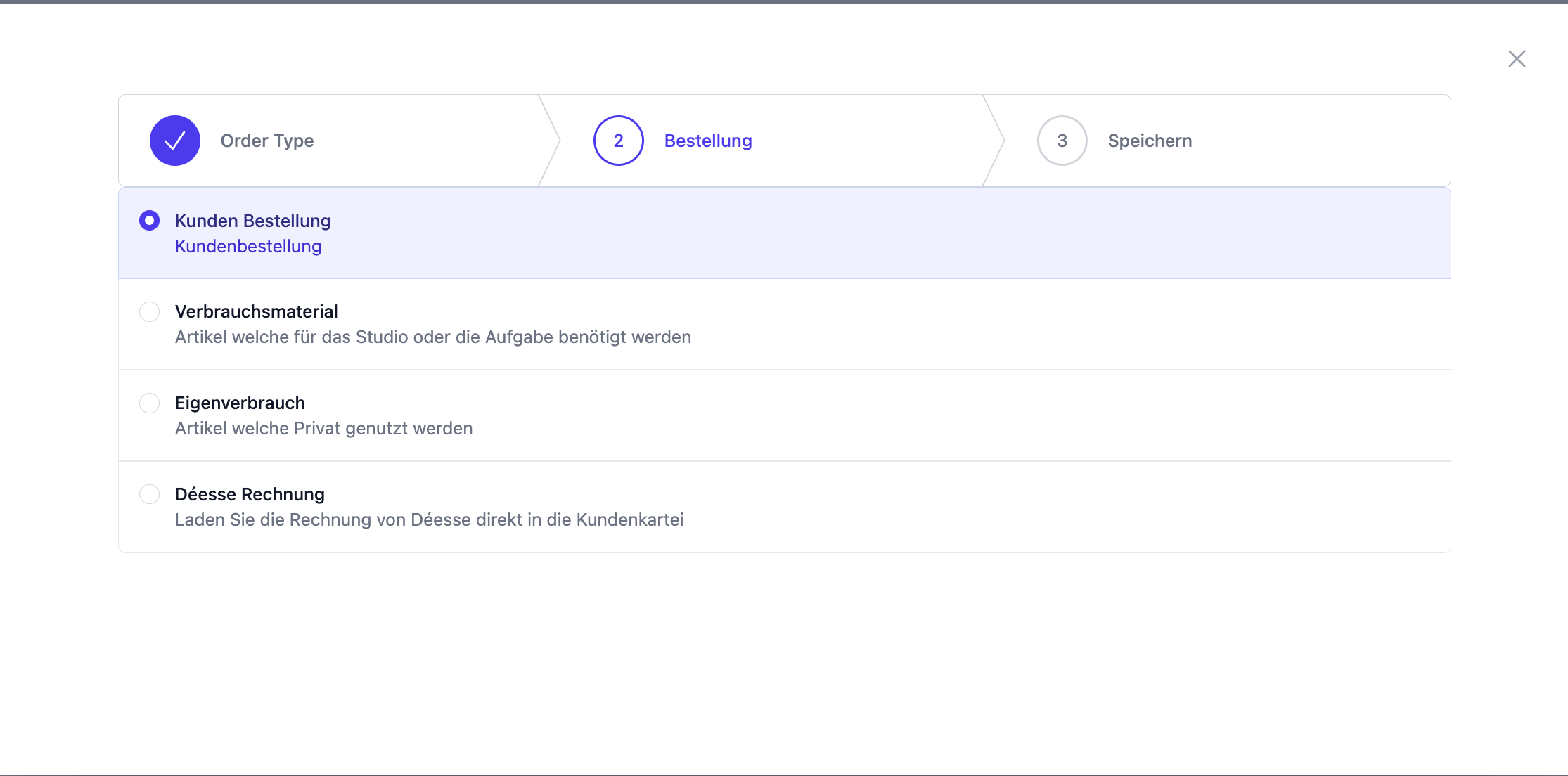
2. Choose the order type
Choose one of the following types:
- Delivery to the customer
- Collection by the customer
- Own use (internal withdrawal)
- Consumables
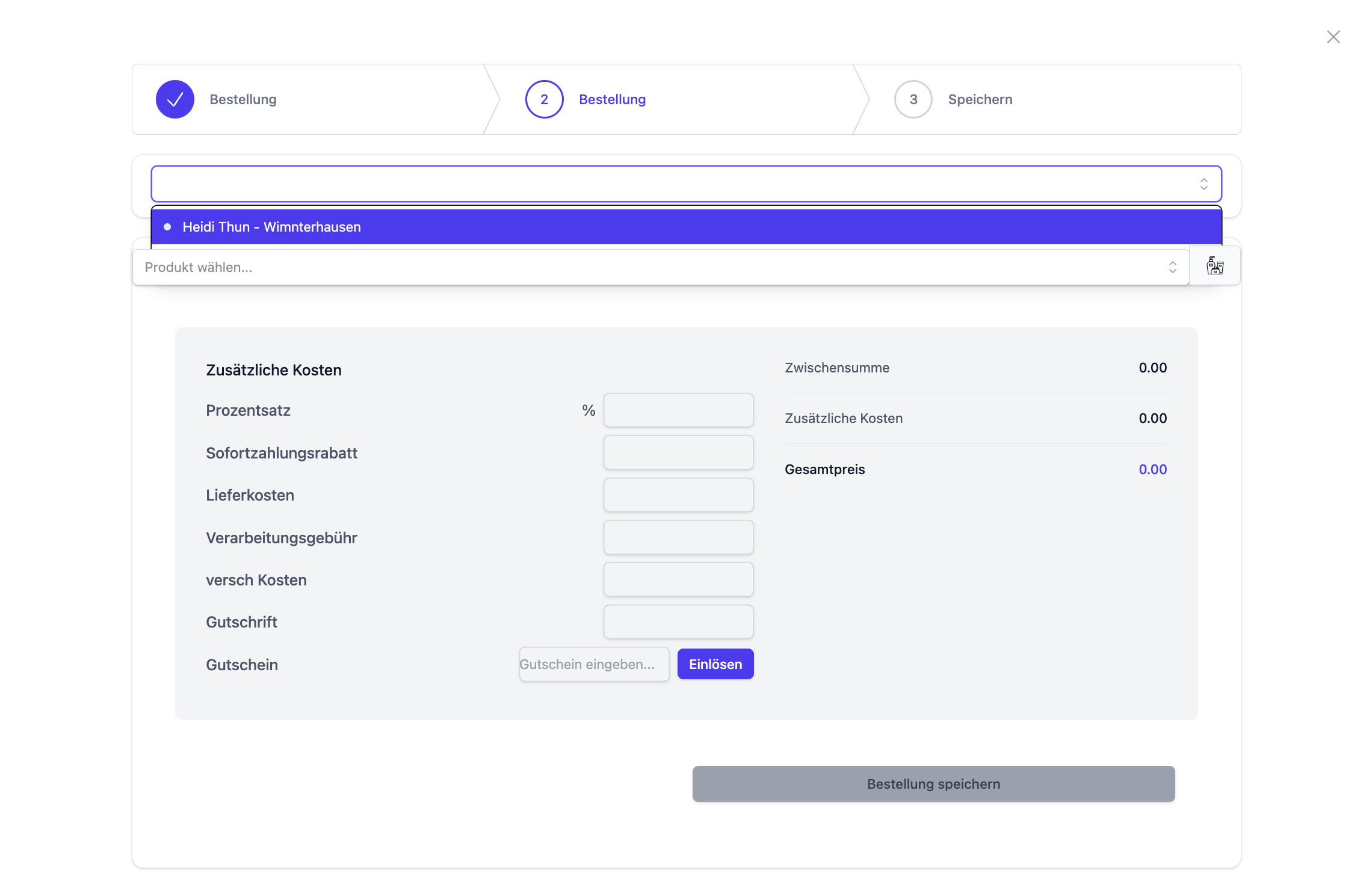
3. Select the customer
- Search for an existing customer or create a new one
- Check the address and contact details
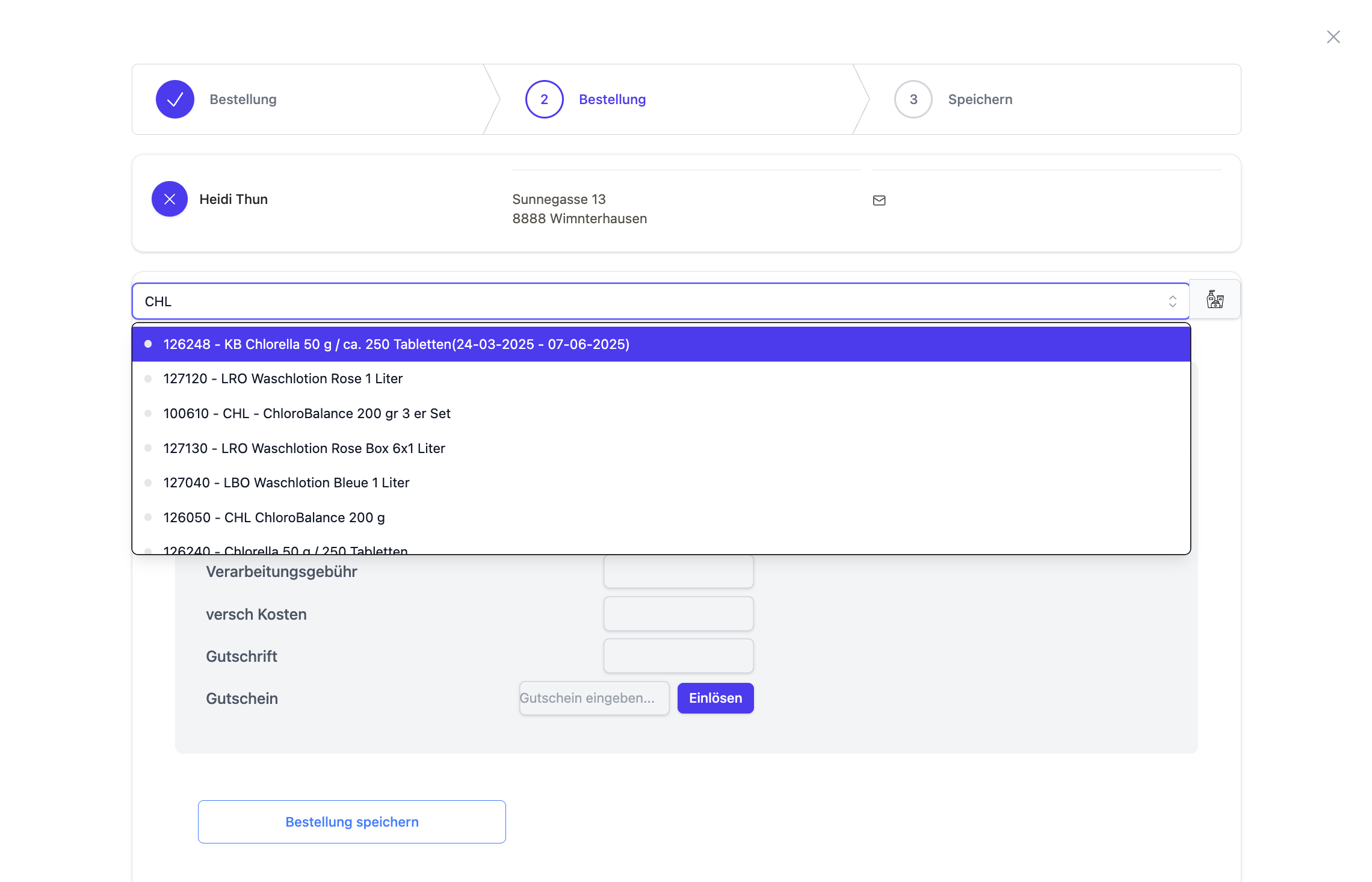
4. Add items
- Search by item name, item number or barcode
- Enter the quantity; record variants/serial numbers if needed
Note: with serial numbers, the selection is checked again at delivery to ensure full traceability.
5. Define additional costs (optional)
- Shipping, packaging, surcharges
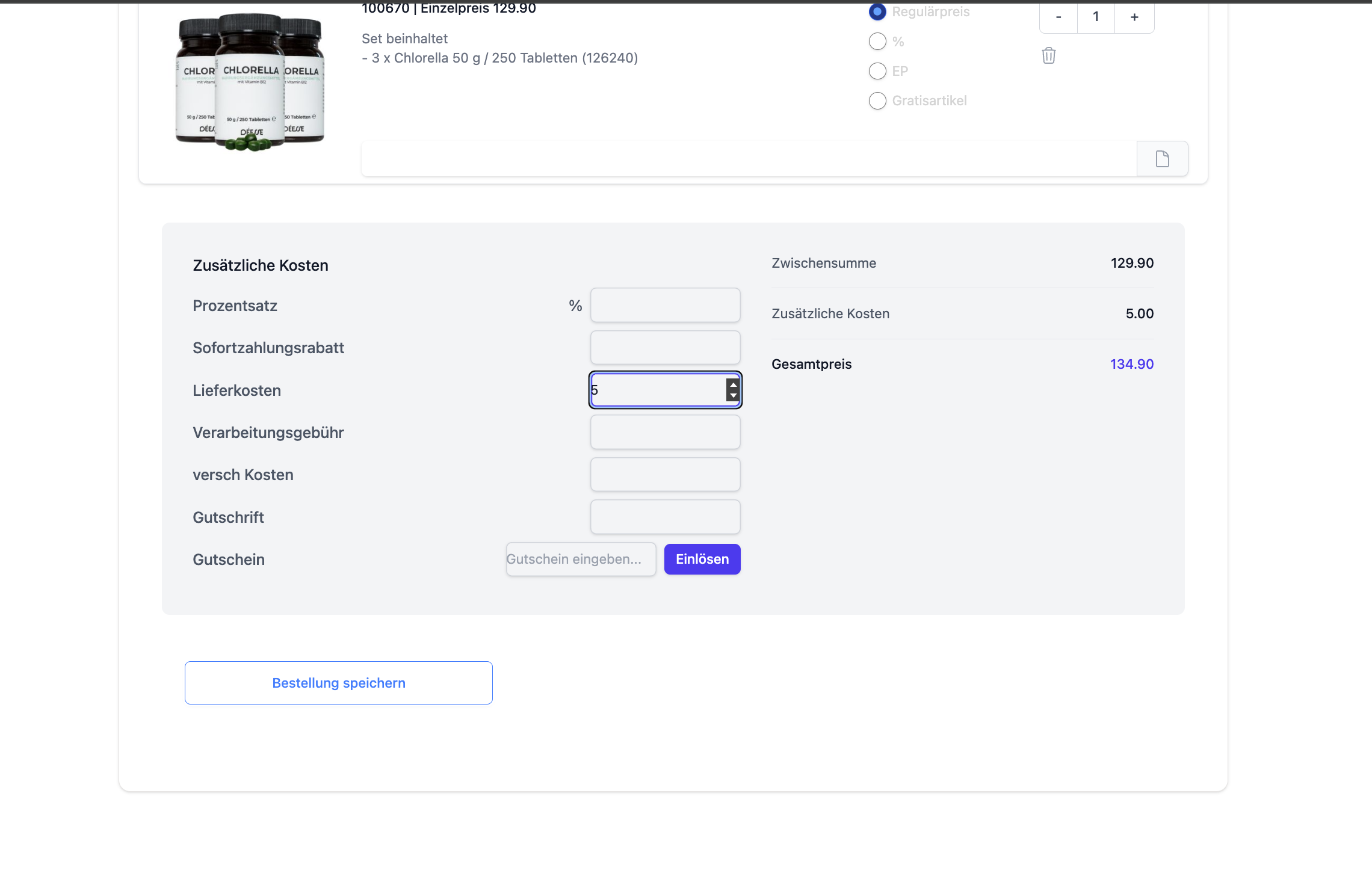
6. Check and save the order
- Check the totals, taxes and discounts
- Click “Save” → status: Recorded
Tip: save frequent lines as templates in the catalogue to record recurring orders faster.
🔧 Editing, delivering, cancelling
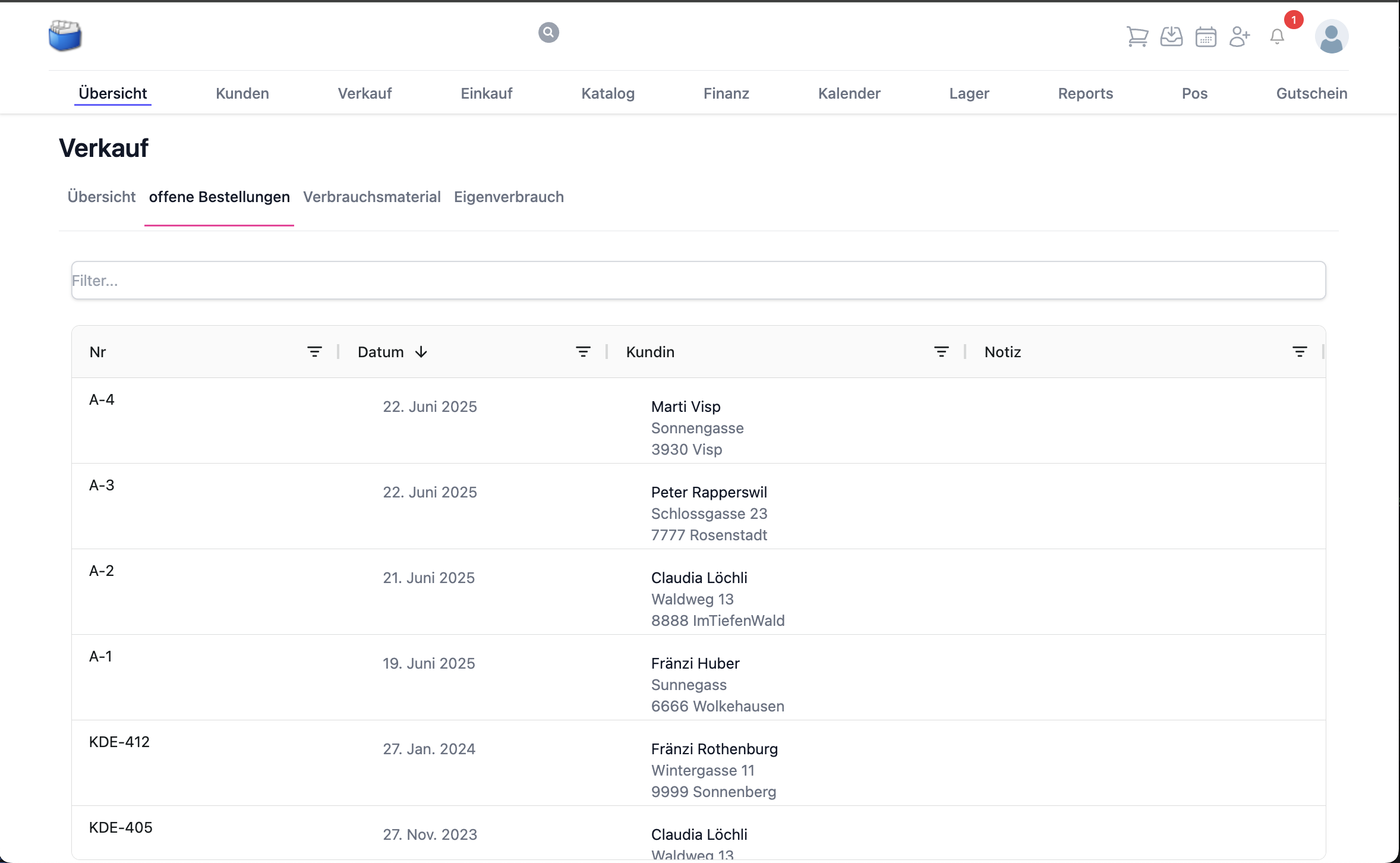
In the order overview you can do the following with existing orders:
- Edit them, as long as they have not been triggered
- Deliver them (fully or partially), including a delivery note
- Cancel them, to reverse the stock movements
- Delete them, while they are still in the Recorded status
Caution: after a delivery, direct deletion is no longer possible. Use a cancellation or a return delivery.
📦 The link to stock
| Action | Effect on stock |
|---|---|
| Saving the order | none |
| Triggering a delivery | The stock level is reduced |
| Cancellation | The stock level is reversed |
Partial deliveries only reduce the stock for the quantities actually delivered.
🧾 An invoice from an order
- Create the invoice directly from the delivered order
- The lines, prices, discounts and taxes are carried over automatically
- Partial invoices are possible for partial deliveries
Tip: before invoicing, check whether the additional costs (shipping/packaging) are complete.
📤 A supplier invoice from an order
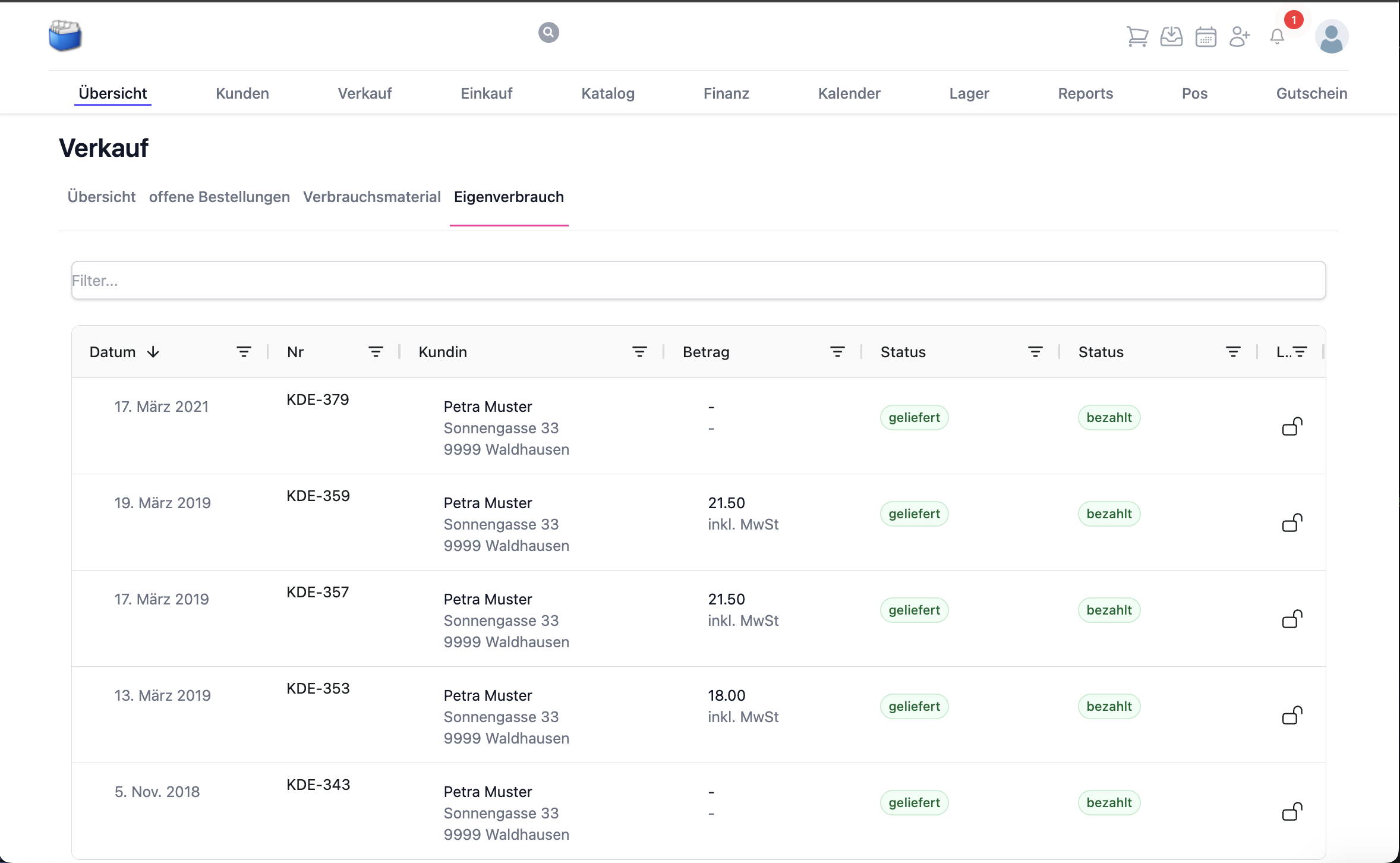
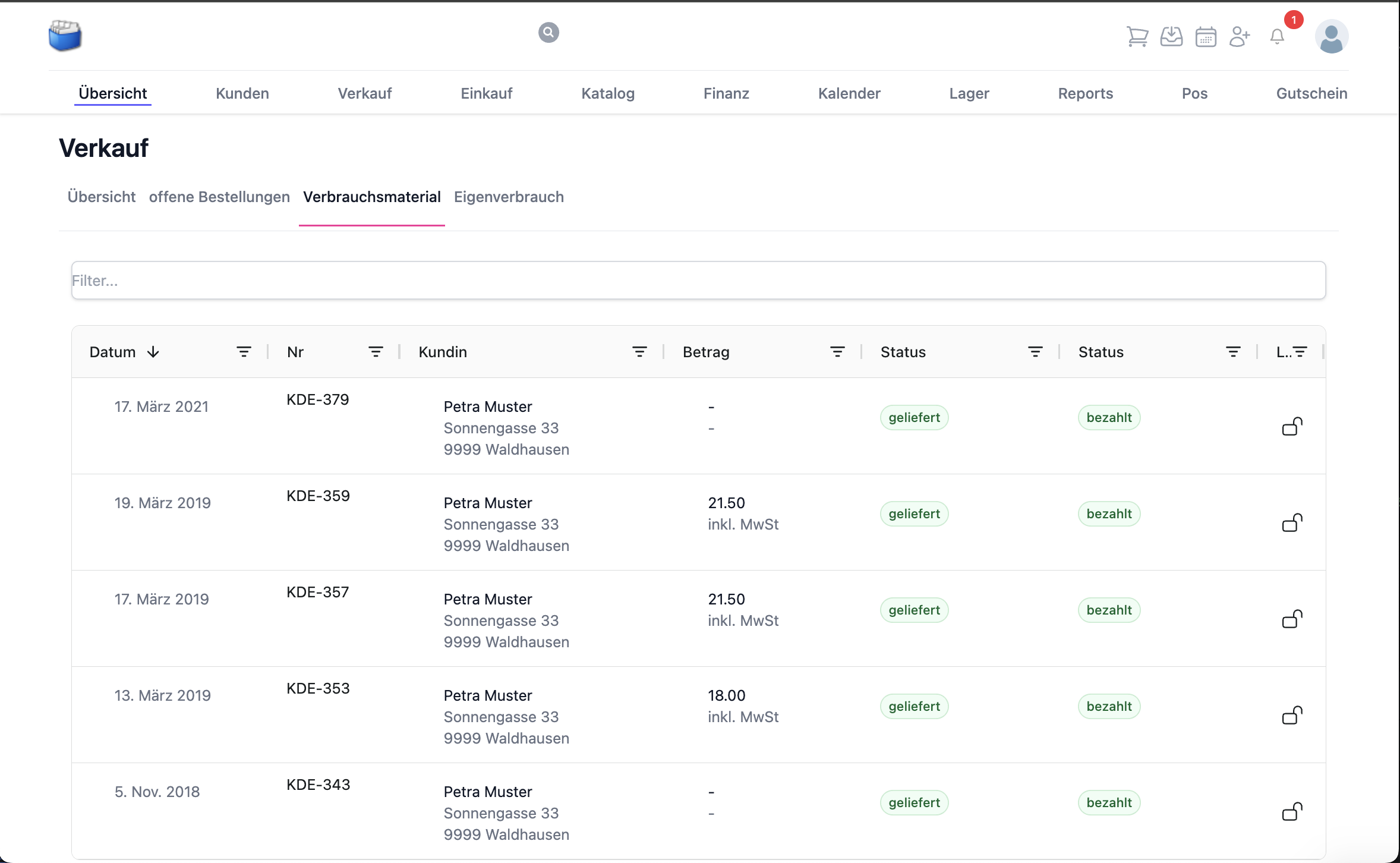
For internal or consignment stock processes you can generate a supplier invoice automatically. With the appropriate configuration, a comparison is made with:
- the invoice amount
- the delivered products
- the delivery date
→ Discrepancies are marked automatically
📚 Frequently asked questions (FAQ)
The order cannot be saved – what should I do?
- Check the mandatory fields (customer, at least one line)
- Check that the quantities/units are unambiguous
- Session expired? Refresh the page and save again
How do I post a return delivery?
- Open the delivered order
- Choose return delivery/return and record the returned quantity
- Check whether a credit note is needed
Can I change prices afterwards?
- As long as no invoice has been created: yes (open the line, adjust the price)
- After invoicing: use a cancellation or a credit note
How do I deal with partial deliveries?
- When triggering, choose the partial quantity that can be delivered
- The remaining quantity stays open and can be delivered later
🔗 Related modules
📝 Change history
| Version | Date | Changes |
|---|---|---|
| 1.3 | 20 August 2025 | Workflow/status extended, FAQ added, language harmonised |
| 1.2 | 27 July 2025 | Structure, language and presentation revised |
| 1.1 | 28 June 2025 | Content restructured |
| 1.0 | Original | First version |