Calendar
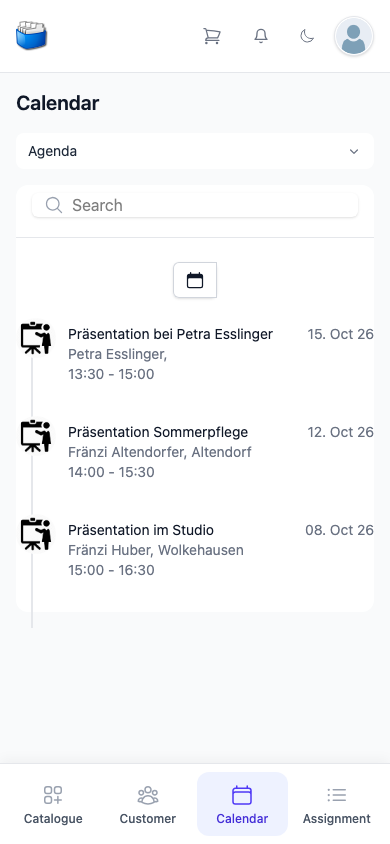
The Calendar in Kundenkartei Go shows your presentations, calendar entries and tasks – for planning the day and a quick look on the go.
🗂️ Overview: agenda and task
At the top you choose between two lists – on a phone as a drop-down list, on a wider screen as tabs:
- Agenda – presentations and calendar entries with a date
- Task – your tasks
The entries are listed one below the other, the one with the latest date first. Each shows a symbol for its kind, the title and, if a customer is assigned, her name and town. For a presentation the start and end appear below; in the agenda the date is on the right.
✏️ Viewing and editing an entry
- Tap the entry in the list
- The window shows the entry’s details
- Change the details and adopt them with Save – or discard them with Cancel
➕ Creating a new entry
Tap the calendar symbol above the list. A window opens with four tabs:
| Tab | What for | Fields |
|---|---|---|
| Task | a task with a due date | Title, Date, Customer, Complete, Note |
| Presentation | a presentation with participants | Title, Date, Start, End, Host, Participant, Note |
| Appointment | an appointment with products | Title, Date, Start, End, Host, Products, Complete, Note |
| Time tracking | recording time spent | including Title, Date, Start, End, Duration, Customer |
Choose the right tab, fill in the fields and tap Save. For a task, Title and Date are required.
Best practices:
- Assign the customer directly – the entry then also appears on her page.
- Use meaningful titles (“Consultation Lisa – set reorder”).
✅ Managing tasks
- Create a task: title and date, customer and note if needed
- Once it is done, open it and tick Complete
- Under Task in the calendar you see all tasks at a glance
🔗 Linking to customers
- Tasks, presentations and appointments can be assigned to a customer – through the search field at Customer or Host
- On the customer’s page they appear in the Appointments and Reminders tabs
- That keeps the customer history complete
❓ Frequently asked questions (FAQ)
I cannot see an entry – what should I do?
- Check that you are in the right list: Agenda or Task.
- Open the calendar again so that the list is reloaded.
The entry does not show a customer.
- Open the entry, search for and select the customer at Customer or Host, then save.