Catalogue
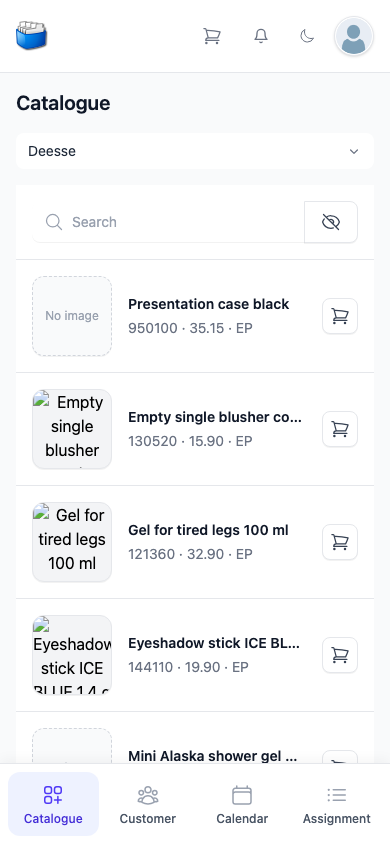
The Catalogue is the start page of Kundenkartei Go. It shows the articles you can order, and from here you add them to the order list.
📚 Deesse and own products
At the top you choose which catalogue you see:
- Deesse — your supplier’s catalogue. Number, description and prices are maintained from outside.
- Own Products — the articles you have recorded yourself.
On a phone the choice is a drop-down list; on a wider screen the two sit side by side as tabs.
Note: in Go you only view articles. You add and edit your own products in the web application.
🔎 Searching
The Search field takes effect from three characters. It searches article number, description, category and group — not prices or dates. Upper and lower case make no difference. The bottom of the list shows how many articles it is currently displaying.
The eye button to the right of the search field switches between Show current products and View all products. When you open the page you see the current products.
📋 The list
Each row shows the picture, the description and, below it, article number, price and article type. If an article is outside its validity period, that period appears below it, highlighted in yellow.
- Tapping the picture or the description opens the detail view.
- Tapping the shopping cart on the right adds the article to the order list. Article added appears briefly, and the number on the shopping cart in the header counts up.
Sets and articles you have to put together do not go straight into the order list: for them, the shopping cart opens the detail view first.
🔍 Detail view
The detail view opens as a window over the list, with the description as its title. It shows:
- the picture, if one is stored
- description and article number — tapping expands the descriptions in the individual languages, if there are any
- SP, the selling price — expanded, EP and VAT appear below it
- Information with period, action type and type
- for a set, the Options: for each group, how many articles are taken and the maximum allowed
- the stock In stock, if stock is kept
- Further details with the posting accounts and the stock details
For a set you distribute the quantities with minus and plus. The limit applies to the whole group; once it is reached, the button can no longer be pressed.
The Add to cart button is always at the bottom. It adds the article — for a set, with your combination — to the order list and closes the window. To close the window without adopting anything, use the X at the top right.
🛒 Adding to the order list
- Directly from the list with the shopping cart
- Or from the detail view with Add to cart
- Each addition puts a separate line at the top of the order list, even for the same article. You then adjust the quantity in the order list.
✅ Best practices
- Always check sets in the detail view before adopting them.
- Add an article once and set the quantity in the order list rather than tapping it several times.
- Check the lines in the order list before you order.
❓ Frequently asked questions (FAQ)
I cannot find an item – what should I do?
- Enter at least three characters; shorter entries do not filter the list.
- Search for the article number or part of the description.
- Check that you are in the right catalogue: Deesse or Own Products.
- Use the eye to switch to View all products.
Why can I not edit an article?
- Go only displays articles. You edit your own products in the web application; the Deesse articles come from your supplier.
A set does not go straight into the order list – why?
- That is intended: you put a set together in the detail view and adopt it there with Add to cart.