Customer
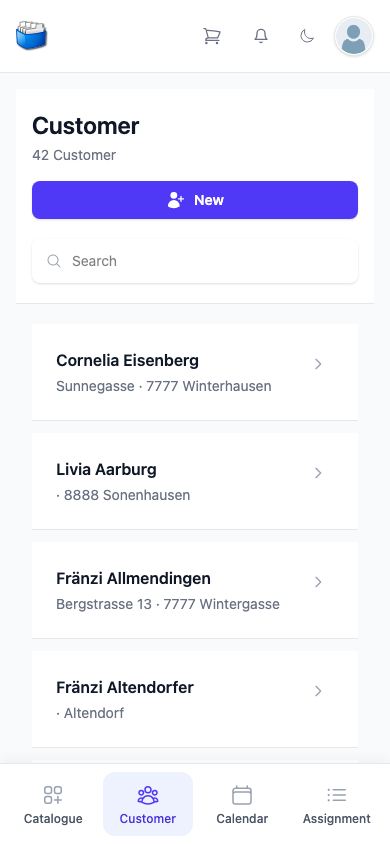
Under Customer you find your customers directly on your smartphone or tablet. You search for contacts, see their details, change them, keep a short note and take the customer into the order list.
📜 Customer list
At the top are the number of customers and the New button, with the Search field below. The list filters as you type — across first name, last name, street, town and the phone numbers.
Each row shows the name with street, postcode and town below it. Tapping the row opens the customer.
Tips:
- A few letters of the name are often enough.
- Search first, before you add a customer with New — that way no duplicates arise.
👤 The customer’s page
At the very top is the Customer block with two buttons:
- Edit opens the input form. The button only appears if you are allowed to change customers.
- Add to cart takes this customer into the order list.
Below that are the customer’s details: salutation and name (for a company, the company name), address and country. Small symbols sit beside them:
- the envelope, if an e-mail address is stored — it opens your mail program
- the pencil — it also opens the input form
- the credit symbol — it opens Create credit note
Further down follow the Customer groups (you assign groups with the label symbol), any vouchers and the Short notes.
If a customer can be deleted, a waste bin appears at the very bottom. It deletes the customer without asking again.
🗂️ Tabs for the customer
Below the details are tabs — on a phone as a drop-down list:
| Tab | What it shows |
|---|---|
| Assignment | the customer’s orders |
| Article | articles not yet delivered |
| Order Journal | the customer’s order journal |
| Journal | the customer’s journal |
| Appointments | presentations and appointments with the customer |
| Reminders | tasks relating to the customer |
✏️ Adding or editing a customer
New in the list, Edit or the pencil on the customer’s page open the same input form. To close it without saving, use the X at the top right.
At the top you choose between Private person and Company. For a private person you fill in Salutation, First Name and Family Name; for a company, the name under Company. Under Customertype you tick Customer, Supplier or both.
Further tabs lie below:
| Tab | Fields |
|---|---|
| Address | Street, Zip, Place, Country |
| Contact details | E-mail, Mobile, Phone, Tel Business — for a company also salutation, first name and family name of the contact person |
| Note | a formattable note on the customer |
| Customer groups | the groups the customer belongs to — stays empty as long as no groups have been set up |
| Further details | Language, Birthday, Customer number in the external system |
Saving
Save at the end of the form adopts the details.
Notes:
- For a private person, first name and family name are required; for a company, the company name. If something is missing, the form reports Es fehlen Angaben (the application shows this message in German in every language).
- If you add a new customer and the name already exists, A customer with the same name already exists. appears. The customer is then not created.
🛒 Taking the customer into the order list
On the customer’s page, tap Add to cart. She then appears in the order list as the customer of the order — together with the articles already in it.
On a wider screen the header shows the customer’s name next to the shopping cart. On a phone only the symbol appears there; you see which customer is selected at the top of the order list.
📝 Short notes
The short note is a free-text field directly on the customer’s page. Enter conversation notes, preferences or reminders. As soon as you change something, a save button appears in the field; tap it so that the note is kept.
✅ Best practices
- For companies, record the contact person under Contact details – that makes follow-up questions easier.
- Set the language under Further details correctly.
- On site: open the customer, tap Add to cart, add articles from the catalogue.
- Avoid duplicates: search first, then add.
❓ Frequently asked questions (FAQ)
Changes are not saved – why?
- Check the required fields: first name and family name, or the company name.
- Check the internet connection and save again.
Customer not found – what should I do?
- Search by street, town or phone number instead of the name.
- Try a different spelling.
Change a private person into a company (or the other way round)?
- Open the input form, choose Private person or Company at the top, fill in the missing fields and save.
The order list does not show the right customer.
- Open the order list and remove the customer with the X. Then choose the right one, or tap Add to cart on her page.