📤 Data migration: Kundenkartei 5 (myDéesse) → Kundenkartei Cloud
In just a few steps you can transfer your existing data from the local Kundenkartei 5 (myDéesse) into Kundenkartei Cloud.
✅ Requirements
- Access to your local Kundenkartei 5 (myDéesse)
- A current data backup of Kundenkartei 5
- Access to Kundenkartei Web (cloud) with permission for settings/import
Tip: create the data backup immediately before the import, so that all the current changes are included.
🗂️ Creating a data backup
Create a data backup in the local Kundenkartei 5.
You will find the detailed instructions here:
Creating a data backup (external documentation): https://support.kundenkartei.ch/documentation/schulungshandbuch/#datensicherung-erstellen
Keep the backup file somewhere easy to find (e.g. the desktop/downloads).
⬆️ Running the import in the cloud
The import takes place in Kundenkartei Web.
Go to the settings
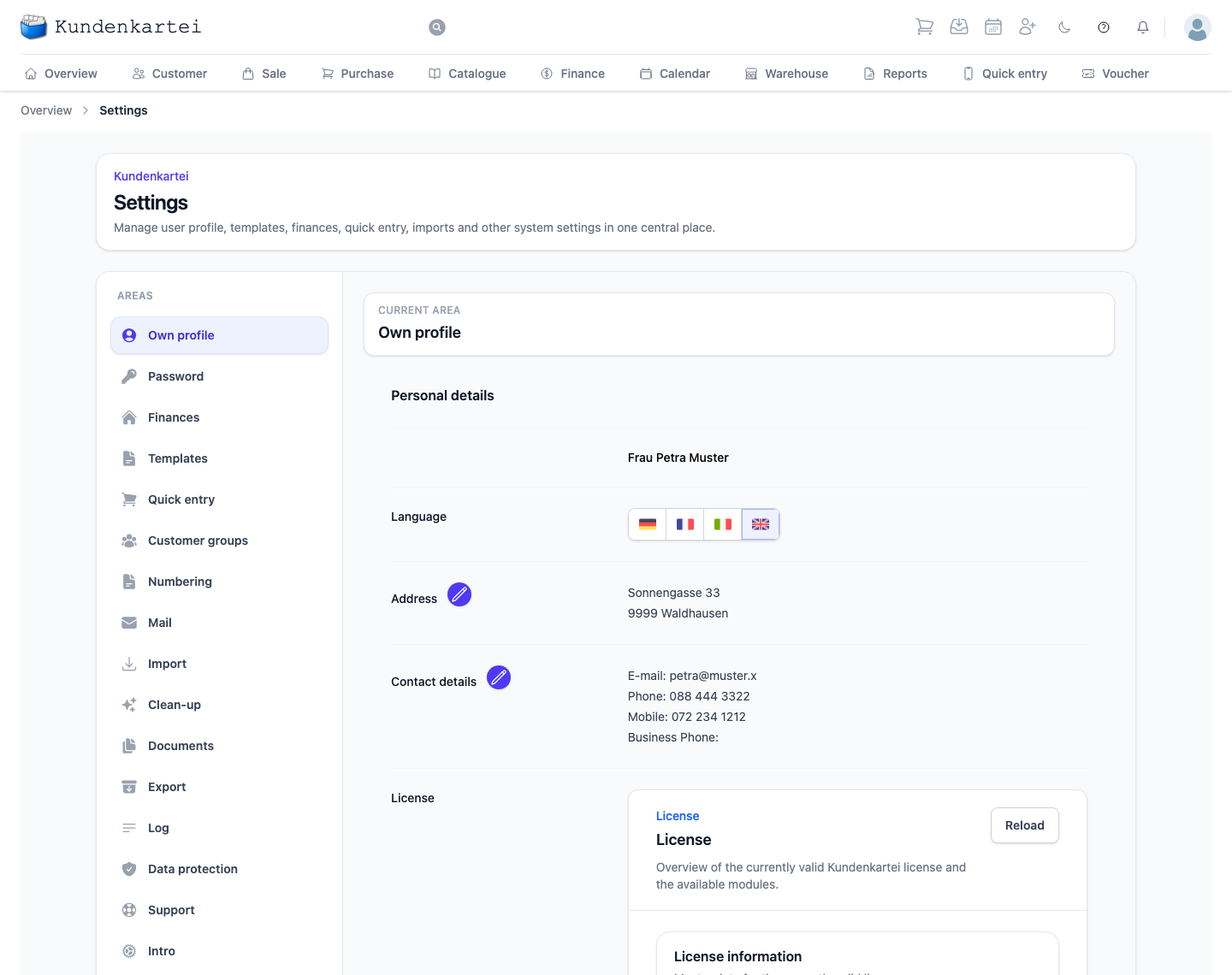
Settings Open the “Import” area
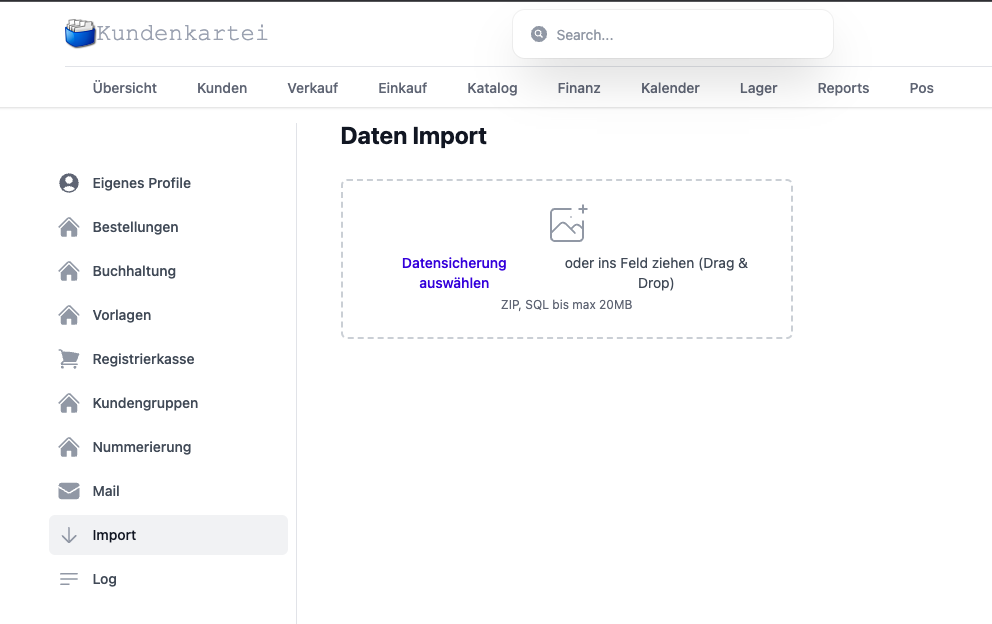
Upload the data backup
- Drag & drop the file into the field, or
- click “Select data backup” and choose the backup file
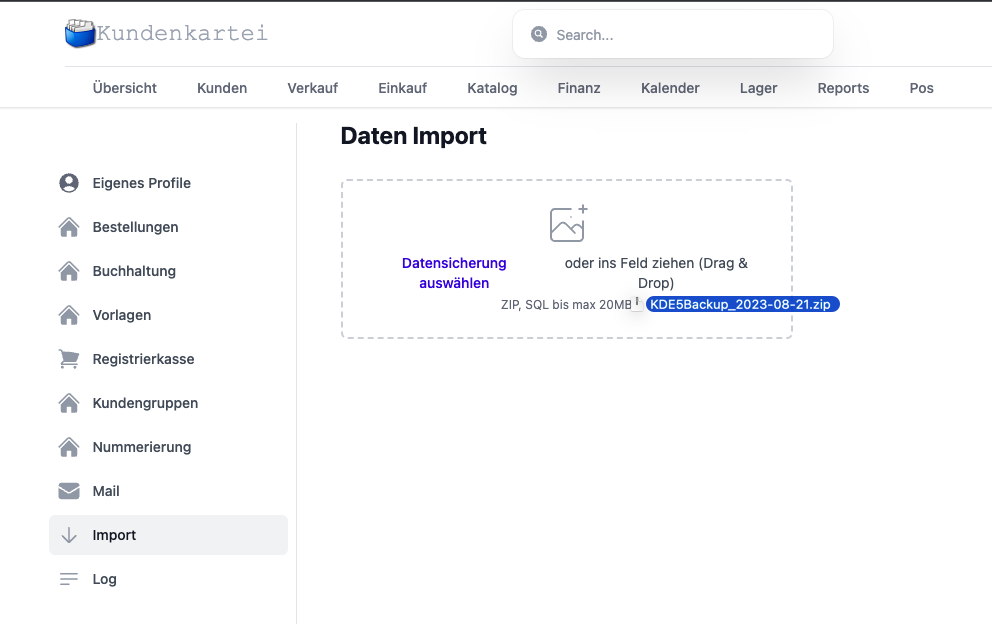
- Start the upload and wait until the confirmation appears
Note: depending on the file size and your internet connection, the upload can take a little while.
⏱️ Duration and availability
Once the upload is complete, the processing starts in the background.
Depending on the volume, that can take several minutes. Only afterwards is the data fully visible in the cloud.
- You can carry on working during the processing
- Refresh the lists concerned (e.g. customers) after a few minutes
🔎 Checking after the import
Go through the most important areas on a sample basis:
- Customers/companies (number, do the fields make sense?)
- Orders/documents (visible, are the date values correct?)
- Catalogue/items (where migrated)
- Notes/history (check representative entries)
Best practice: compare 3–5 records with your local data as examples, to be sure everything is complete.
🧩 What is imported?
The following are typically transferred, among other things:
- Contacts (customers/companies) including the core fields
- Documents/orders (depending on the structure)
- Relevant additional information (where it is contained in the backup)
Note: depending on the version/structure, individual fields/modules may differ. If something important is missing, see “Troubleshooting”.
🧯 Troubleshooting
The upload breaks off
- Select the file again; make sure the internet connection is stable
- With very large files: repeat it or contact support
The data does not appear
- Wait 10–15 minutes, then log in again/reload the pages
- Restart the cache/browser
- Check that the right file was uploaded (a current backup)
Individual records are missing or incomplete
- Try keywords/IDs in the search (umlauts/transliterations)
- Check whether there were several clients/variants in the local system
- Contact support (see below) with:
- The time of the import
- The name/organisation
- Sample records (name/number) and screenshots
🔐 Data protection and security
- The backup file contains sensitive data. Keep it safe and delete local copies when they are no longer needed.
- Only transfer the file over trustworthy connections/devices.
- In the cloud, the usual data protection and access concepts apply (role-based).
📫 Support
If you need help, get in touch with us:
- E‑mail: support@kundenkartei.ch
- Please include:
- The time of the upload
- The file name/size of the backup
- A short description of the problem including examples/screenshots